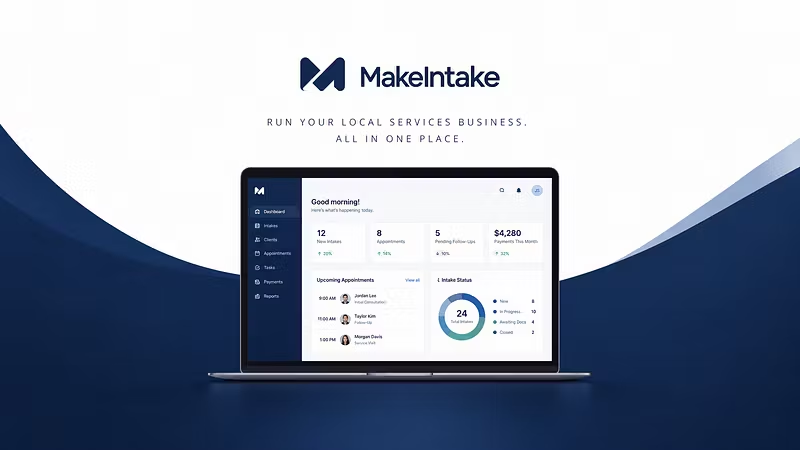


Welcome to MakeIntake Business OS - Getting Started
Welcome to MakeIntake Business OS
This guide walks new MAKEINTAKE buyers through connecting your CRM and Lovable dashboard credentials so you can start using the operating portal right away.
1. Open the operating portal
Visit the dashboard here: https://intake-hero-ai.lovable.app
Bookmark it. This is where you run intake, CRM connections, and day-to-day operations.
2. Activate your login
Check the email you used at checkout for account activation details.
If you cannot sign in, or you need a login reset, reply in support chat and we will reset access for you.
3. Complete the setup checklist: CRM and Lovable credentials
Work through these steps in order.
A. Sign in to the Lovable dashboard
Sign in with the credentials from your activation email
Confirm you land on the MakeIntake home screen
B. Connect your CRM
Open Settings or Integrations in the dashboard
Choose your CRM (for example HubSpot, Salesforce, or the CRM you use)
Authorize MakeIntake when prompted
Confirm contacts, pipelines, or intake records start syncing
C. Confirm dashboard credentials stay in sync
Keep your Lovable login email the same as your Whop purchase email when possible
If you rotate a password or API key, update it in the dashboard immediately
Test one intake submission and verify it appears in both the dashboard and your CRM
D. Finish remaining first-run items
Add your business name and default intake form
Set who on your team should receive new-lead notifications
Run one test lead end to end before you go live
4. Get help
Post questions in this forum so other members can benefit from the answer.
For immediate help, open a support chat and we will get you unblocked.
You are set when you can sign in, your CRM is connected, and a test intake shows up in both the dashboard and the CRM.