PB Company: sourced guides you can finish in one evening

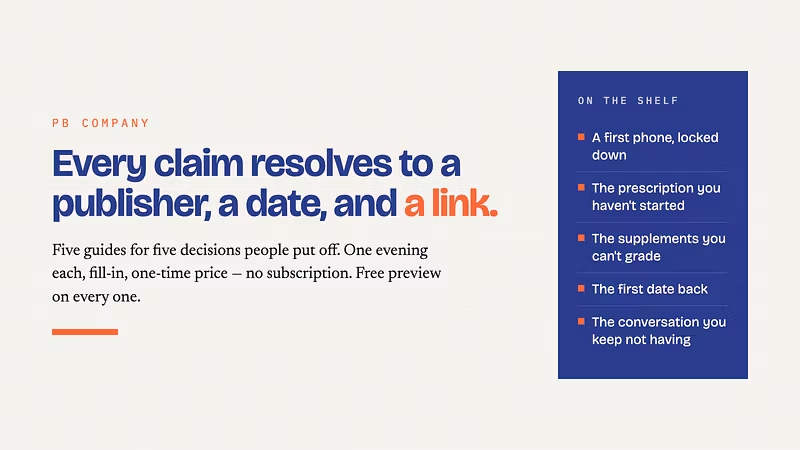
Five guides, five decisions people put off: your kid's first phone, the prescription you haven't started, the supplements you can't grade, t...
Location hidden
Created byProfile pictureYaniv
Profile picture
YanivProfile picture@pbcompany·2d

"A timer on her phone so it turns on and off at particular times": done tonight, iPhone or Android

One parent in the sources this kit is built from asked for exactly this: "a timer on her phone so it turns on and off at particular times", and that "I must give permission first" for any download. That is one evening's work, if the steps are in the right order and you test at the end.


The First Phone Kit is that evening, written down: 14 steps on iPhone or Android, screen by screen. The parent passcode set and locked before the child sees the phone again. App deletion switched off. The block tested on the child's own phone, not read off a settings screen. A one-page agreement you both sign, UK and US versions. Every instruction carries the Apple or Google page it came from. Also inside: the evening checklist, "When they find the workaround", and an honest list of what the kit does not cover, read before you start.


$27, once. No subscription. Read the free 4-page preview first, one full step with its sources:


Yaniv

Profile picture
YanivProfile picture@pbcompany·2d

After your evening: one favour

If the kit did what it promised tonight, an honest review on Whop helps the next parent find it. If it didn't, reply here and tell me what was missing. Yaniv

Profile picture
YanivProfile picture@pbcompany·2d

One kid on iPhone, the other on Android: there is no single setting for both.

There is no setting that governs both phones. iPhone uses Screen Time, Android uses Family Link, and they are two separate systems built by two separate companies that share not one screen. A mixed household needs both sequences done properly, and most paid guides only give you one: the closest $27 competitor says on its own page, "My child has an Android. Will this work? No."


What actually changes between the two: on iPhone the protection is a locked settings passcode plus a deletion block; on Android it is order, every rule set from your phone before the child holds theirs, then Developer Options off. Family Link's time limits and Screen Time's Downtime are different screens with different names. The apps (YouTube, Instagram, Snapchat, Roblox) are configured inside each app, on both platforms, because the phone settings do not reach into them.


What is the same: the test. Open the limited app on each child's phone. If it opens, it is not on.


Both sequences side by side, with sources:


Yaniv

Profile picture
YanivProfile picture@pbcompany·2d

Screen Time not working? Kid found a way around it. The two-step fix, and the test.

A setting that looks configured and a setting that is actually enforced are not the same thing. When Screen Time "stops working", it is almost always one of two things, not a clever child.


  1. App deletion was never blocked. On iPhone: Settings > Screen Time > Content & Privacy Restrictions > iTunes & App Store Purchases > Deleting Apps > Don't Allow. Without this, anything that lives in an app is one long-press from gone.

  2. The settings were never locked. Screen Time > Family > [child] > App & Website Activity > Turn On > Lock Screen Time Settings, with four digits the child does not know, and Passcode Recovery on.


On Android the equivalent is sequence: set every rule from your own phone in Family Link first, then switch off Developer Options and USB debugging on theirs.


Then test on the child's phone, not yours: open the thing you limited. If it opens, nothing is enforced yet. And recheck monthly: updates and resets clear settings quietly.


Full page with the sources and the test:


Yaniv

Profile picture
YanivProfile picture@pbcompany·2d

What are the best parental control options for a first phone? Usually the free ones, in the right order.

For most families the answer is not a paid app. Apple Screen Time and Google Family Link are free, built into the phone, documented by Apple and Google themselves, and cover almost everything a first phone needs: a parent passcode, download approval, daily limits, content restrictions, and a way to stop the child deleting what you set up.


The real problem is order and proof. Nobody sets the free tools up in the right sequence, on both platforms, or tests afterwards that the limits actually hold on the child's own phone rather than trusting the settings screen.


The paid apps (Bark, Qustodio and the rest) sit on top of those same settings; they do not replace them. If the two underlying settings were never done, the paid app fails the same way, and the reviews say so.


Full sequence, both platforms, with the Apple and Google sources:


Yaniv

Profile picture
YanivProfile picture@pbcompany·3d
Pinned post

Do you need a paid app for a first phone? Usually not. Here is what makes the free tools hold.

Honest answer from someone who has spent too long on this: for a first phone you probably don't need a paid app. Apple Screen Time and Google Family Link are free, built in, and cover almost everything; Bark and Qustodio sit on top of those same settings, they don't replace them. Reviews of the paid apps repeat the same failure: the kid deleted the app, or an update wiped the settings, and the parent found out weeks later.


What actually makes the free tools hold:


  1. Set the parent passcode before the phone goes back to the kid.

  2. iPhone: Content & Privacy Restrictions > iTunes & App Store Purchases > Deleting Apps > Don't Allow. Android: set everything from your phone first, then switch off Developer Options and USB debugging on theirs.

  3. Test on the child's own phone. Open something you blocked. If it loads, nothing is enforced yet.

  4. Put a monthly ten-minute recheck in your calendar. Updates and resets clear settings quietly.

  5. Do YouTube, Snapchat, Instagram and Roblox one at a time inside each app; the phone-level settings don't reach into them.


One trap: Apple's screens differ by iOS version and by account country, so note both before following any guide, including this one.


The kit this comes from is the paid product on this page; the free 4-page preview shows one full step with its sources: