The SMT Detector

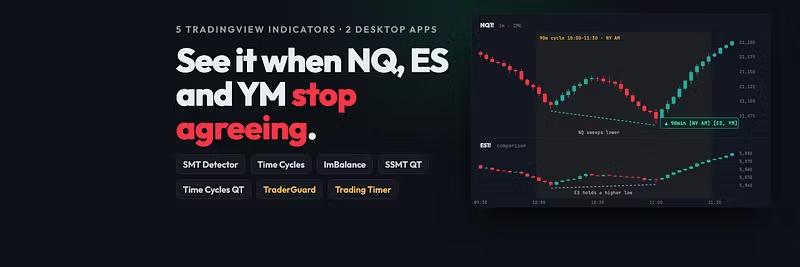
See the moment NQ, ES and YM stop agreeing. The SMT Detector marks SMT divergence as it forms, across 10 cycles from 3-minute to yearly,...
Location hidden
•Created byProfile pictureThe SMT Detector
Profile picture
The SMT DetectorProfile picture@thesmtdetectorĀ·11h

TraderGuard 0.1.3 is out

TraderGuard 0.1.3 is ready to download.


What's new

  • Calm music with spoken calm and focus lines on the floating bar

  • In-app update check

  • Calm reminder now shows over full-screen TradingView every time

  • Reminders pause when the market is closed

  • Works with TradingView Desktop 3.4.1

  • Security hardening and Electron 45


šŸ‘‰ Get it here:


Already installed? Download the new version and drag it into Applications to replace the old one — your settings stay as they are.

Profile picture
The SMT DetectorProfile picture@thesmtdetectorĀ·11h

šŸš€ Start here: get your indicators on TradingView (2 min)

Joined, but don't see the indicators on your chart yet? That's normal. Access is given to your TradingView username, so there's one quick step.


Pro members

  1. Find your TradingView username: click your profile picture on tradingview.com. It's the name at the top of the menu (not your email).

  2. In the Whop sidebar under Indicators, open each claim page, paste your username, press Set, then Claim Indicators.

  3. Refresh TradingView → Indicators → Invite-only scripts. Star ⭐ them so they show in Favorites.


Free members

Open the script and click Add to favorites:


Full guide with all claim links + troubleshooting:


Stuck? Reply here or message Support with your TradingView username.

Profile picture
The SMT DetectorProfile picture@thesmtdetectorĀ·11h

šŸ“š 5 new guides: SSMT QT, Time Cycles QT, alerts, forex/crypto/gold

We just added five guides to the website. Each one answers a question members keep asking.


Quarterly Theory SSMT: what each level (M, MO, W, D, Session, Q, Micro, Nano) compares, and what Normal vs Internal SSMT means.


Time Cycles QT: the Q1–Q4 colours, the True Opens (TDO, TWO, TMO, TYO) and the sweep markers.


SMT alerts in TradingView: set one alert per cycle so you only hear about the SMTs you trade.


SMT on forex, crypto and gold: which pairs get compared automatically, and why gold vs DXY works in reverse.


Invite-only scripts not showing? Step-by-step fix.


Something you'd like a guide on next? Reply here.

Profile picture
The SMT DetectorProfile picture@thesmtdetectorĀ·11h

Trading Timer 0.1.2 is out

Trading Timer 0.1.2 is ready to download.


What's new

  • Fixes to the calendar and no-trade-day warnings

  • Cycle engine and HUD improvements

  • More reliable start-up and background behaviour


šŸ‘‰ Get it here:


Already installed? Download the new version and drag it into Applications to replace the old one — your settings stay as they are.
Profile picture
The SMT DetectorProfile picture@thesmtdetectorĀ·11h
Pinned post

What the Free version doesn't show you

If you're on The SMT Detector FREE, you already have the same detection engine as Pro: 3m, 10m, 30m, 90m and Session SMT, with auto-detected comparison tickers.


Here's what you're missing:


šŸ”” Alerts on every cycle. TradingView pings you when an SMT forms, so you don't have to watch the chart all session.


šŸ“Š The confluence dashboard. Every cycle Ɨ both comparison tickers in one table, plus a confluence row. When 3 cycles agree, you see it at a glance.


šŸ“… Higher-timeframe SMT. Daily, Weekly, Monthly, Quarterly and Yearly cycles, for the bias your intraday entries should line up with.


šŸŽÆ Your own pairs. Manual ticker override, plus Gold/Silver vs DXY inverse correlation handled automatically.


🧰 The whole suite. Pro members also get Time Cycles, ImBalance Detection (FVG/BPR) and the Quarterly Theory tools (Time Cycles QT + SSMT QT).


Every Pro feature already appears in your Free settings panel with a šŸ”’ next to it. Open the settings to see exactly what unlocks.


Pro is $29/month, $79/quarter or $279/year, with a free trial. Cancel anytime.

šŸ‘‰


Questions about whether Pro fits how you trade? Reply here and I'll answer.

Profile picture
The SMT DetectorProfile picture@thesmtdetectorĀ·11h

Trading Timer: free cycle & session clock for your Mac

Most bad entries aren't bad reads, they're bad timing: clicking 20 seconds before the 30m bar closes, trading the dead zone after NY PM, or forgetting NFP is in 40 minutes.


Trading Timer is a free macOS menu-bar app that keeps you on the clock:


ā±ļø Live countdowns for the 3m, 10m, 30m and 90m cycles and the Asia / London / NY AM / NY PM sessions

🪟 A small floating HUD that stays visible over fullscreen TradingView, on every Space

šŸ“° High-impact news from the ForexFactory calendar, filtered by currency

🚫 A NO-TRADE DAY warning when red-folder USD news is today or tomorrow

šŸ”• Notification, sound and HUD flash controls for each cycle, so the 3m can stay quiet while the 90m gets your attention


It's free, with no subscription, and it never touches your broker or your trades.


How to install (2 minutes)

  1. Get it free here:

  2. Open the .dmg and drag Trading Timer into Applications.

  3. Launch it and click Allow when macOS asks about notifications. Without this, alerts are silent.

  4. Open Preferences → set your trading days and hours in your local timezone.

  5. Pick a HUD layout and turn on Start at Login if you want it running every morning.


Requires macOS 12 or later (Apple Silicon or Intel). Updates are checked once a day, and a banner points you back here when a new version is out.


How to use it with The SMT Detector: when an SMT label appears, check the timer before you act. If the 30m bar closes in 7 minutes, wait for the close and enter on the next bar's open.


Windows version: not yet, but it's on the roadmap.

Profile picture
The SMT DetectorProfile picture@thesmtdetectorĀ·Oct 21

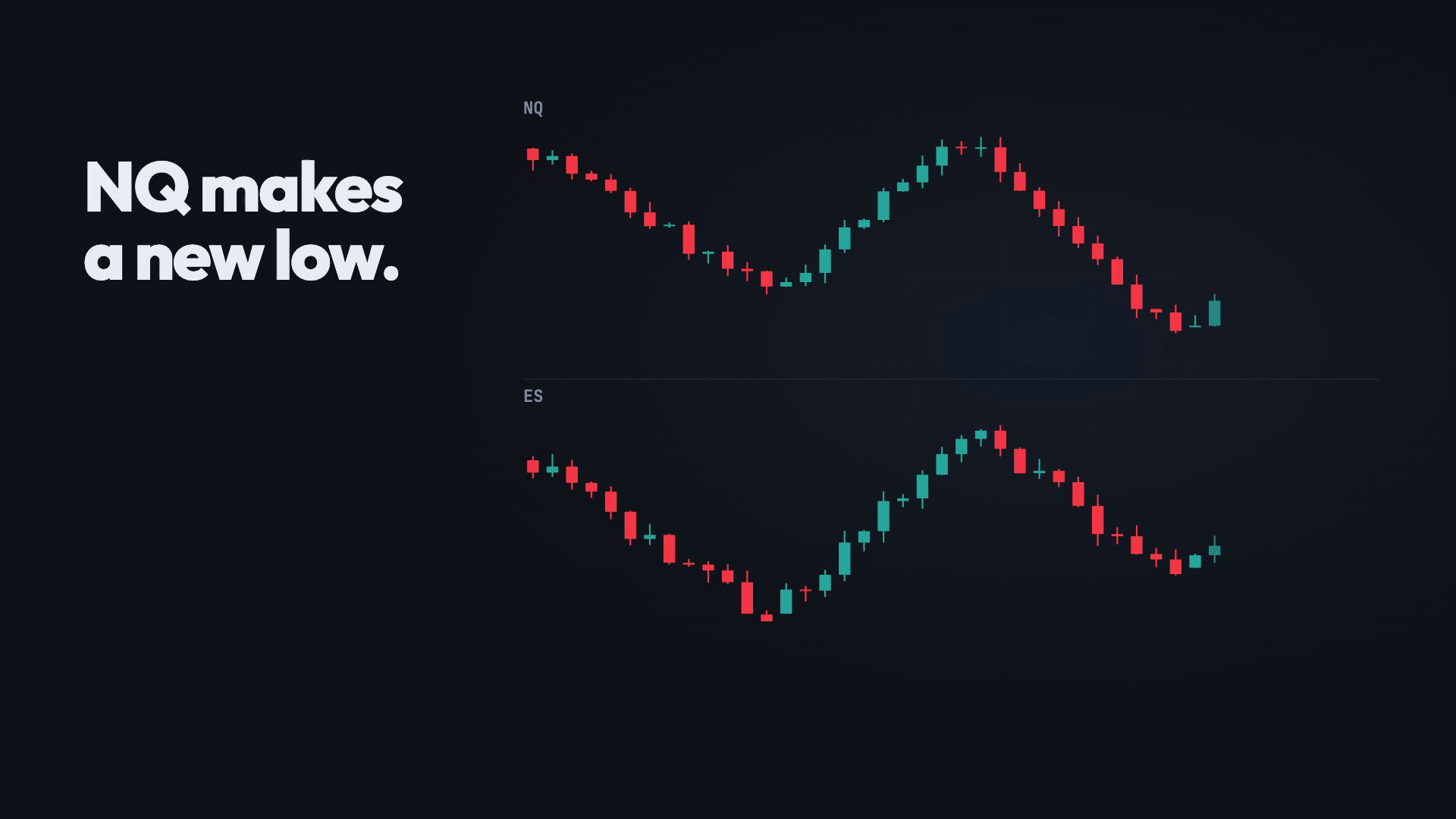
NQ makes a new low. ES doesn't. That's SMT divergence, and that's where the toolkit starts šŸ‘‡


šŸŽÆ The SMT Detector: SMT divergence as it forms, across 10 cycles from 3m to yearly, with an alert for each one.


ā° Time Cycles: 90-minute cycles, sessions and killzones on your chart, in your timezone.


🧱 ImBalance Detection: FVG, IFVG, BPR and IBPR from your chart and a higher timeframe.


šŸ” The SSMT Detector QT: Sequential SMT, comparing each Quarterly Theory quarter with the next.


šŸ—“ļø Time Cycles QT: every Quarterly Theory quarter and True Open, from yearly down to 22.5 minutes.


šŸ•Æļø Quarterly Candles šŸ†•: each quarter drawn as one candle beside price, coloured Q1 to Q4, with a countdown.


šŸ”¢ Numeric Time šŸ†•: highs and lows that print on Goldbach time numbers, cleared once they're swept.


šŸ›”ļø TraderGuard: the Mac journal that steps in before the revenge trade.


ā±ļø Trading Timer: cycle and session countdowns in your menu bar.


āœ… All of it comes with Pro. New here? Start with the free version, then try Pro when you're ready.

šŸ“– Setup guide:


Which tool do you use most? Tell us below šŸ’¬

Profile picture
The SMT DetectorProfile picture@thesmtdetectorĀ·Oct 21

šŸŽ„ How to install TraderGuard (90-second video)

Watch the video below, or follow these steps.

You'll need: a Mac with Apple Silicon, Claude Code signed in with your own Claude Pro or Max plan, and whisper.cpp.

1. Helpers (Terminal): install Claude Code with curl -fsSL | bash, then run claude once and sign in. Then run brew install whisper-cpp and download a model: curl -L -o ~/ggml-base.en.bin

2. Download: open TraderGuard Download in the Whop sidebar and download the .dmg.

3. Install: open it and drag TraderGuard into Applications.

4. First launch: if macOS blocks it, go to System Settings → Privacy & Security, scroll down and click Open Anyway.

5. Permissions: allow the microphone, turn on Screen Recording for TraderGuard, then click Quit & Reopen.

6. AI tools: in Settings → AI tools (advanced), set the Whisper binary (usually /opt/homebrew/bin/whisper-cli), the model file, and the Claude binary (usually ~/.local/bin/claude).

7. Risk caps: in Settings → Risk caps, set your daily loss cap, daily trades cap and loss streak limit before your next session.

8. Auto mode (optional): quit TradingView first (make sure you have no open orders), choose cdp, press Launch TradingView, then Start live.

Stuck? Reply here with a screenshot and I'll help you get set up.

Profile picture
The SMT DetectorProfile picture@thesmtdetectorĀ·Oct 21

šŸš€ Big updates are on the way! šŸš€

We've been busy testing behind the scenes, and these are almost ready:

šŸ”„ QT SSMT: tested line by line on NQ, ES and YM across 1m, 3m, 5m and 15m. Every SSMT matched the quarter logic āœ…

šŸ•Æļø Quarterly Candles: 22.5m quarters now plot correctly on every timeframe šŸ“

ā±ļø Numeric Time: improved and more accurate ⚔

šŸ“¦ Imbalance zones: cleaner colours and better zone tracking, so the important zones near price stay on your chart šŸŽÆ

Rolling out soon. Stay tuned and get ready to trade with more confidence! šŸ’ŖšŸ“ˆ

šŸ‘‡ Drop a šŸ”„ if you can't wait!

Profile picture
The SMT DetectorProfile picture@thesmtdetectorĀ·Oct 9

Introducing TraderGuard: the guard rail between you and the revenge trade šŸ›”ļø


Most blown accounts aren't killed by bad analysis. They're killed by the trade after the loss. Watch the 45-second tour šŸ‘‡


šŸ“” Connects to TradingView and watches every position live, straight from your broker panel.

ā±ļø Steps in at the worst moment: a cool-down after every loss, a daily loss cap, and a hard lockout when you hit your limit, with a calm voice that talks you down.

šŸ—£ļø A natural AI voice that runs on your Mac. Nothing you say or journal leaves your computer.

šŸŽ™ļø Talk, don't type: AI writes your journal entry with the setup, tags and the emotion behind each trade (FOMO, revenge, disciplined, calm).

šŸ“Š Stats that build themselves: win rate, profit factor, expectancy, a P&L calendar and per-account ledgers for prop challenges.


šŸŽ Included with The SMT Detector Pro. Already Pro? Open Whop → TraderGuard Download.

šŸ‘‰ Not on Pro yet? Start your free trial:


Needs an Apple Silicon Mac plus Claude Code (your own Claude Pro/Max plan) for the AI write-ups. Video uses sample data. Results vary. Trading involves risk.