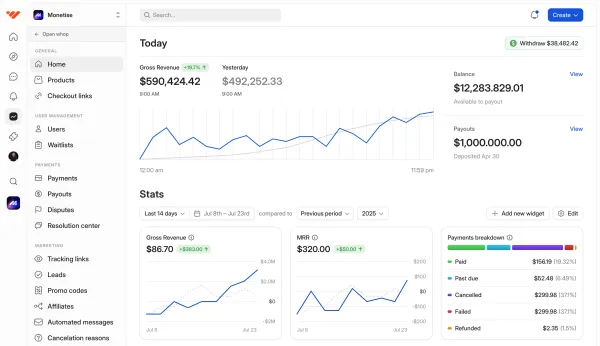
You can set up support chats on Whop by navigating into your whop, clicking the Support chats button in the left sidebar, then clicking the Set up support chats button, and enabling support chat types (user joins and user leaves) and saving them.
Key takeaways
- Setting up support chats on Whop takes just 5 simple steps to boost member engagement.
- Automated messages can trigger when users join or leave, keeping communication seamless without manual effort.
- Personalize support messages with variables, media attachments, and email notifications for better member experiences.
You can set up support chats for your whop in only 5 steps:
- Navigate to your whop and click the Support chats button in the left sidebar
- Click the Set up support chats button
- Enable both User joins and User leaves trigger actions
- Customize the content of the messages, add images or videos, toggle emails on trigger, and select who to send the message as
- Click Save
That's it - setting up support chats in your whop is that simple.
Now, your members will be able to see their support chats at at the top of the left sidebar while viewing your whop, under the Support section.

Customizing automated support messages
There are two types of automated support messages:
- User joins will send a message to every user when they join your whop
- User leaves will send a message to every user when they leave your whop
While you can edit the default message content with plain text, you can also use variables like {receipent_name} or {whop_name} to easily format the message.
You can also attach images or videos to your messages using the Add images or videos button.
Enabling the Send email to user when triggered option will, as its name suggests, send users an email when the automation triggers.
Before saving your changes using the Save buttons at the bottom of the message cards, you should take a look at the Send message as option, which allows you to send the messages as one of your team members.

Enable support messages and increase member engagement today
Now that you know exactly how you can set up support messages for your whop, it's time to apply what you've learned and increase your member engagement.