To add a team member on Whop, open your dashboard, go to Team, and click Invite team member. Then pick a role (Owner, Operations, Sales, Support, or Advertiser) or build a custom one, then invite the user.
Key takeaways
- Whop offers five role presets (Owner, Operations, Sales, Support, and Advertiser) to help distribute team responsibilities effectively.
- You can create a custom role and enable individual permissions like viewing payouts or creating promo codes.
- Be cautious when granting permissions since some team actions like deleting messages or checkout links are irreversible.
Think about digital platforms and how they are structured. You'll find that almost all digital platforms have a role hierarchy: owners, admins, moderators, and so on.
Having these roles helps the owner to share responsibilities across a team, making the platform run smoother.
Here on Whop you can do the same thing for your community, invite members to your team and grant them different roles with unique permissions linked to that role.
In this guide, we're going to take a look at what each role can and cannot do, and how you can invite/remove people from your whop team.
What are whop roles and their permissions?
Whop roles allow users to access different actions like managing payouts, delete messages in the Chat app, or even charging and refunding members. Access to these actions are determined by the permissions role presets have.
There are five role presets on Whop (Owner, Operations, Sales, Support, and Advertiser) which different permission setups for each, and you can also create custom roles with any permission you want.
As the creator of your whop, you'll automatically be given the Owner role, which has all the permissions by default.
Let's take a look at the default permission breakdown of the role presets:
| Permission | Owner | Operations | Sales | Support | Advertiser |
|---|
As all permissions grant some level of extra access to parts of your Whop, it's important to be careful when inviting people to your team.
Some actions your team members can take, such as deleting messages or checkout links, are irreversible.
How to add people to your team
Before we take a look at how you can add people to your team, let's make sure you have a whop ready to go. If you don’t already have your own whop, check out our step-by-step guide on creating a whop.
If you do have your whop ready, let's move on to the steps of adding people to your whop team.
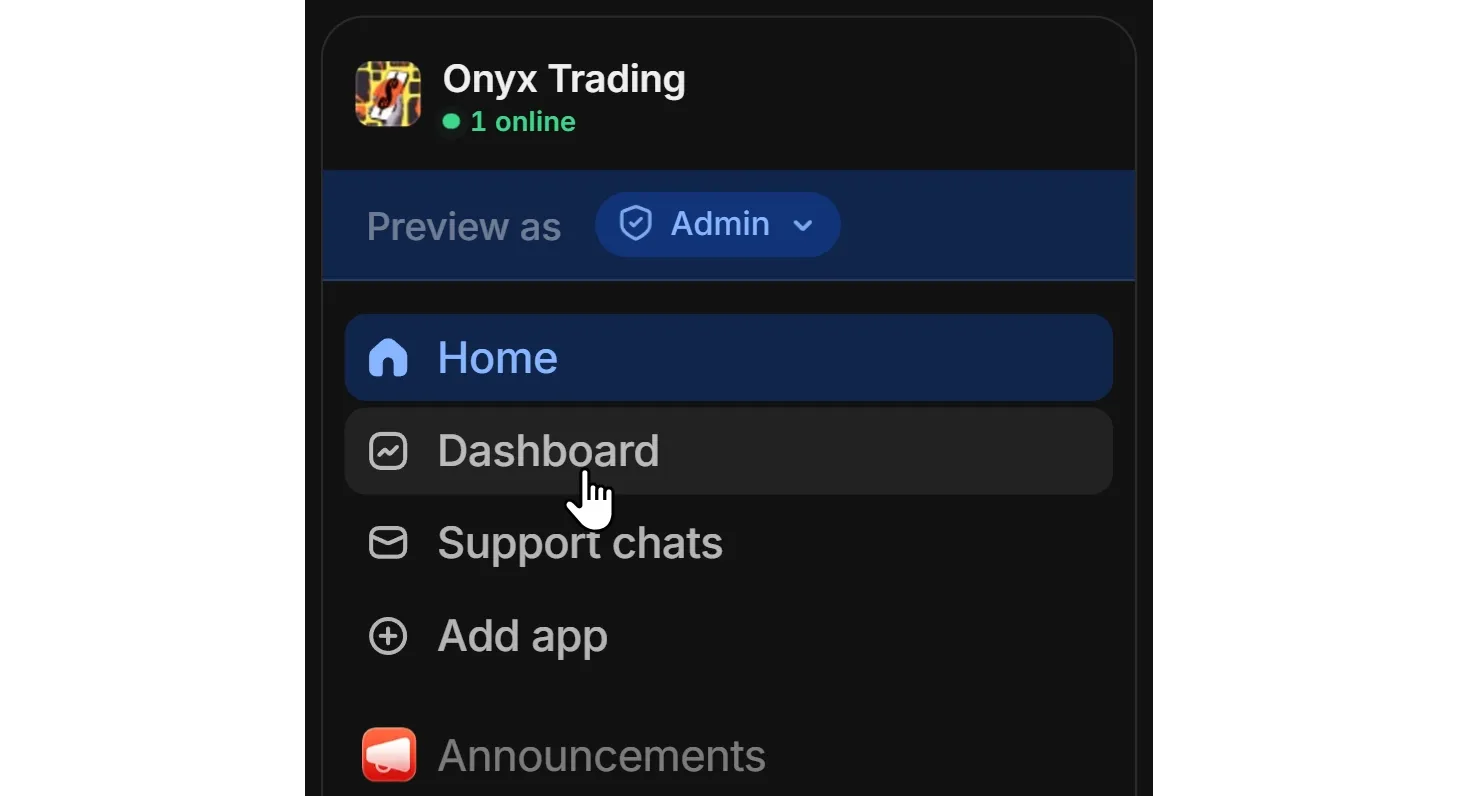
As our first step, let’s click on the Dashboard button in the navigation panel of your whop. Once you’re in the dashboard, expand the More dropdown under the All tools section, and select Team.
Let’s break down the Team settings page together.
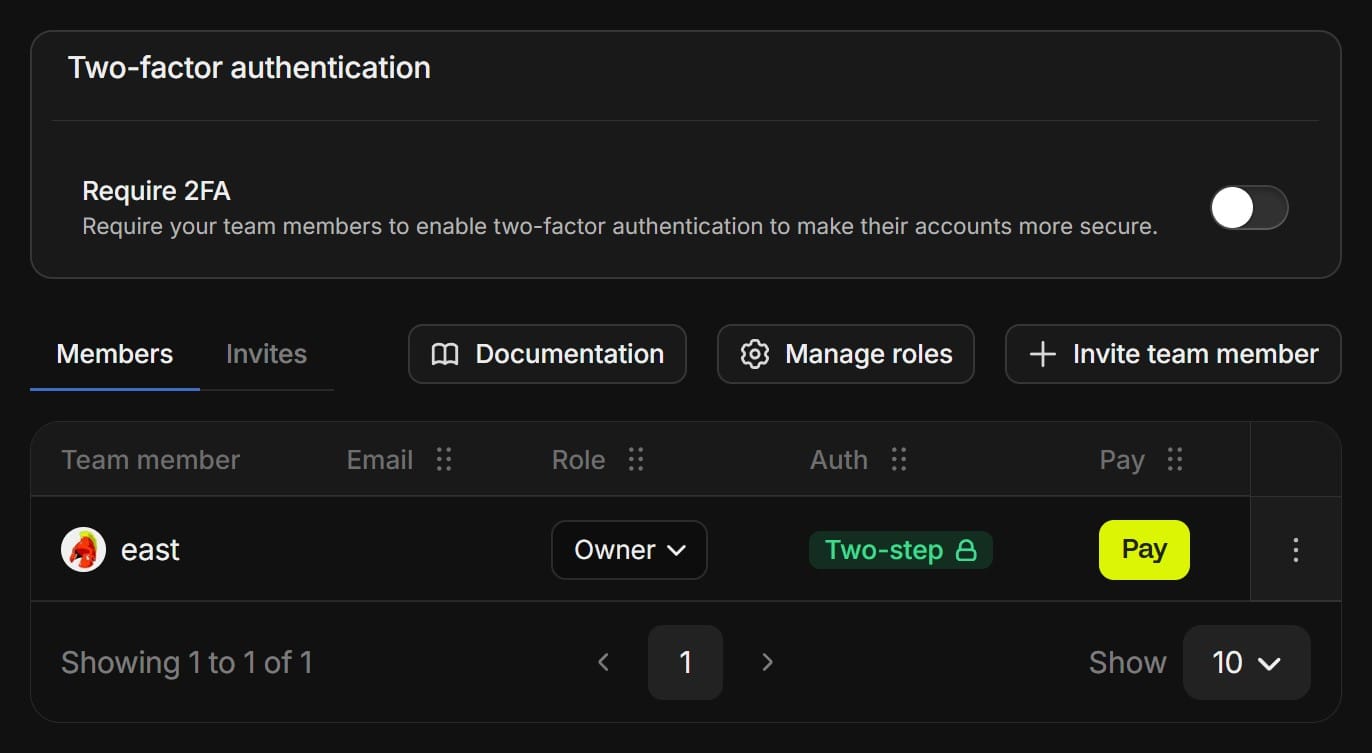
The first thing you'll see is the Two-factor authentication (2FA) box. 2FA is one of the best ways to keep your online accounts secure, so we recommend you enable the Require 2FA toggle so that your team members' accounts are secure.
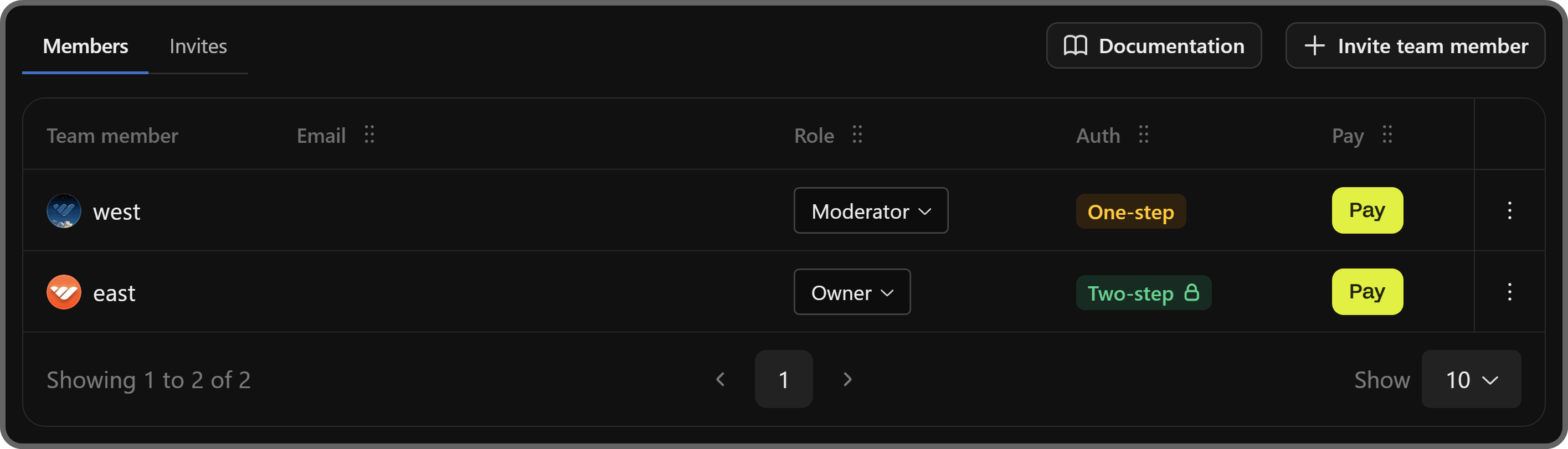
Below that, you'll see a table of your team members with their usernames, emails, role, authentication level (one or two-step), and the pay button. You can also click the Invites button next to the Members tab so see the pending invites.
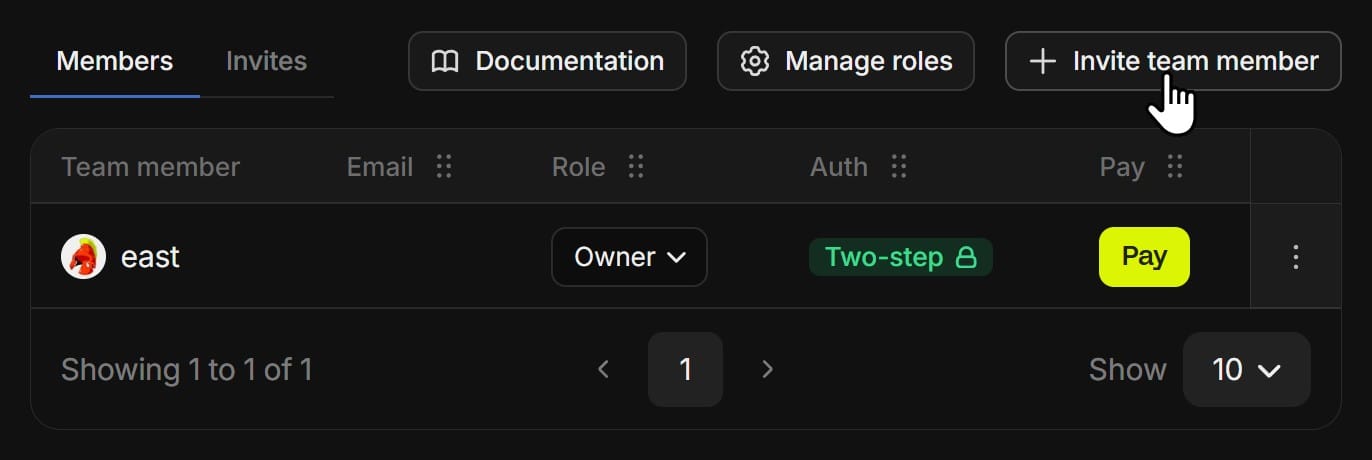
Let's click the Invite team member button at the top right of the members table to see the Invite a team member popup.
In the invite popup, select the permission you want to grant to the user you're going to invite and enter the email address or the username of the user to the input field at the bottom.
Before inviting, you can click on the eye icon next to the permission presets to see a breakdown of which permissions is enabled for that role. If none of the presets are exactly what you're looking for, click the New custom role button at the top of the list.
This will prompt you to enter a name for the role and toggle the permissions you want to grant to the role. Once you're done, click the Invite button at the bottom right of the popup.
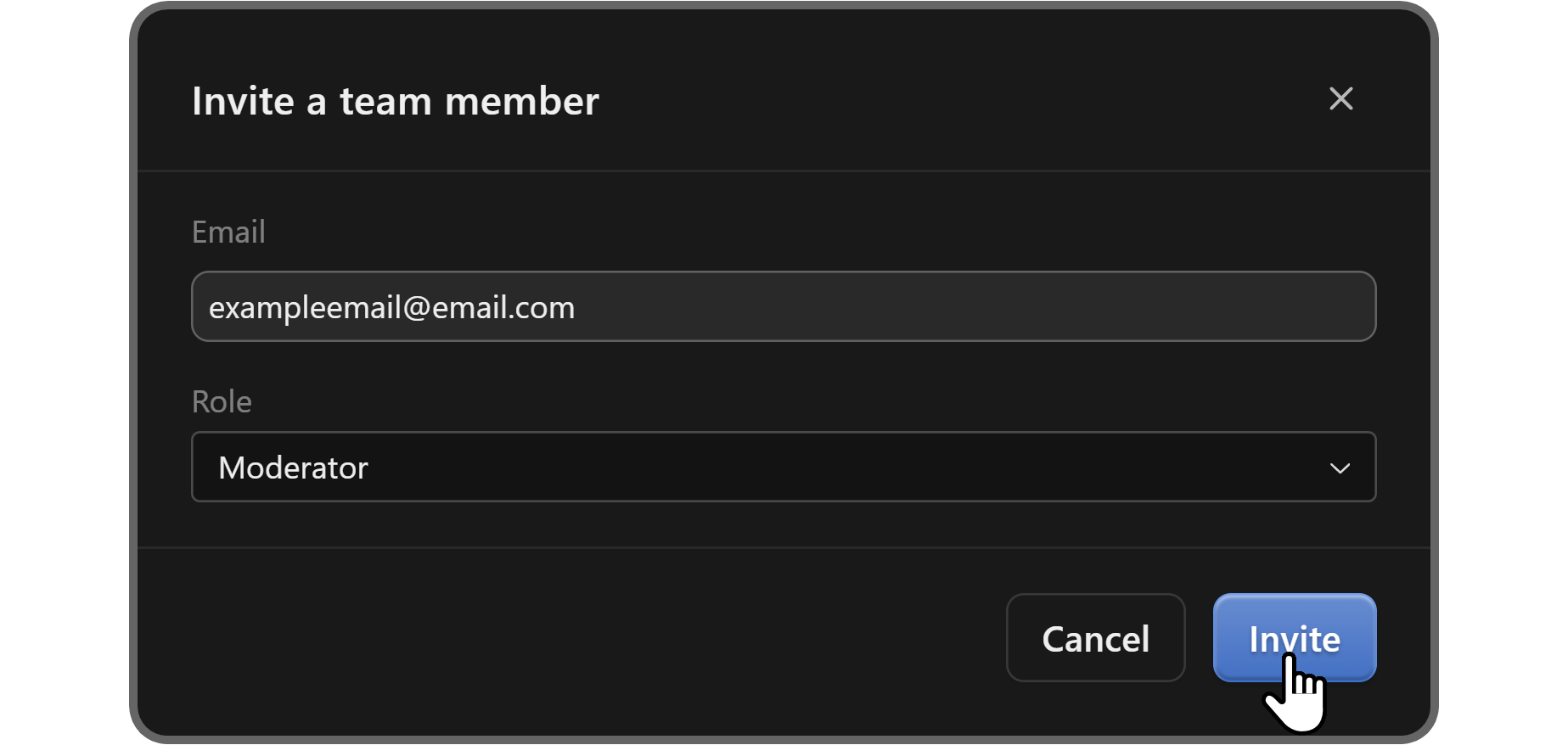
Once you invite the user, they can accept the invite by going to their Whop profile settings and accepting the invite under the Invites tab. Then, you can see them listed in the Members table.
Keep in mind that after they accept the invite, you can then change their role any time you want using the dropdown in the Role column.
How to remove people from your whop team
If you ever want to remove a member from your team, all you have to do is to click on the context menu of the user (to the right) and select the Remove user option from the menu.
This will display a confirmation popup.
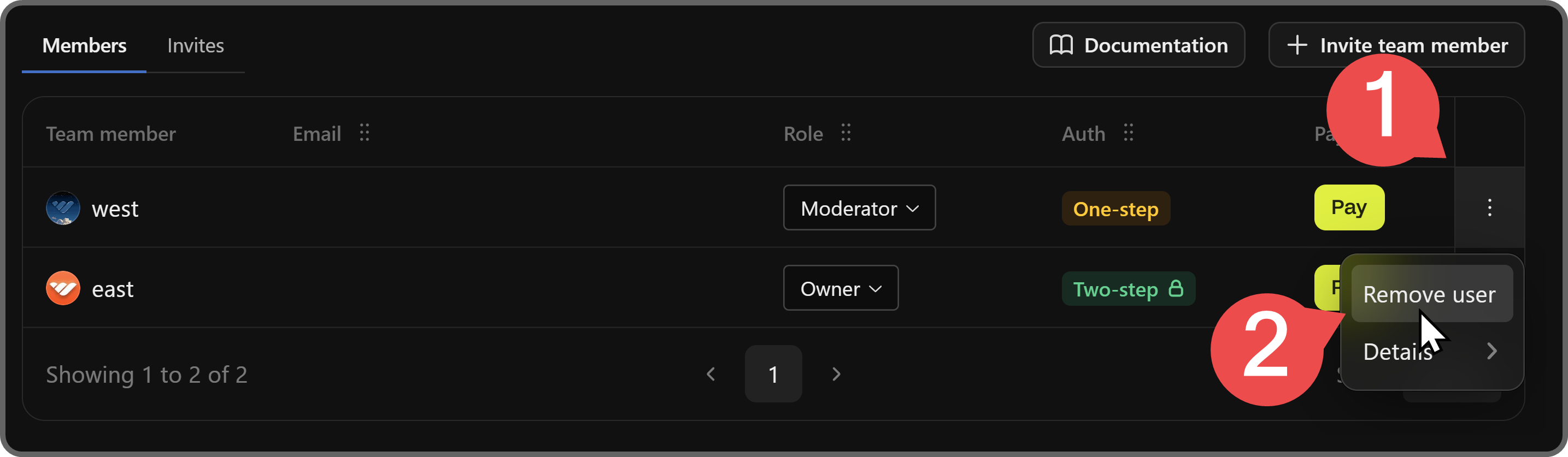
Clicking the Remove user button in the confirmation popup will remove the user from your team. Of course, you can invite them back at any time you want.
Make money the easy way with Whop
That's it - now you have a strong understanding of what each whop team role can and cannot do.
Great team members can help your community run more smoothly, but they’re not the only improvement you can make for your whop. If you want to learn more about improving your whop, check out our comprehensive whop guides for creators.
Don't have a whop yet? Whop has helped thousands of creators like you make money online - and you could be next. Sign up today and create your whop. What are you waiting for?