You can sell AI courses on Whop by creating a free account, adding the Courses app to your whop, uploading lessons, and launching your product on the Discover marketplace. Learn how to turn your AI skills into a course, build a paying audience, and scale with Whop in minutes in this guide.
Key takeaways
- AI courses offer scalable, recurring revenue by packaging expertise into teachable content people actively seek.
- Early movers in AI education capture growing demand while supply remains limited, building authority and network opportunities.
- Whop provides a complete platform to launch AI courses quickly with built-in community, payments, and discovery features.
To start selling an AI course on Whop, you should sign up to Whop.com, create a whop, add the Courses app to it, upload your content, and launch your product.
AI video creation is exploding, and the people who know how to make it work are able to turn their skills into serious cash.
Harry is just 21 – but he’s been making films since he was 10.
And he knows his sh*t: Big names like CashApp, Paramount, Whatnot, and Iman Gadzhi have worked with Harry to create content that racks up millions of views. Like this:
The dude’s a beast at using AI to create cinematic, high-stakes video content – and now, he’s running AI Video Labs, a Whop community and course that teaches creators how to go from zero to viral with AI video.
The bigger picture? Harry’s success is a blueprint. Anyone with AI skills (think video production, image generation, app-building, marketing automation, etc) can create online courses that teach these in-demand abilities.
The AI wave is here, and if you can teach it, you can profit.
Step-by-step: How to start selling AI courses on Whop
Here's how to launch your AI course on Whop in less than 15 minutes.
Choose your niche & audience
The first step before starting any kind of whop is to choose your niche and audience.
Think about what kind of an AI course your product will be — is it about AI automation? LLMs? or does it focus on general daily usage of AI?
After landing on your niche, create a target persona.
What does your average customer look like? Think about their age group, how tech-savvy they are, and what kind of a pricing option they would prefer.
Set up your whop
Setting up your whop is one of the easiest parts of this process, so let's get straight into it.
First, sign up to Whop and click the Create a whop button on the left hand side of your screen — or just use the button below for easy access:
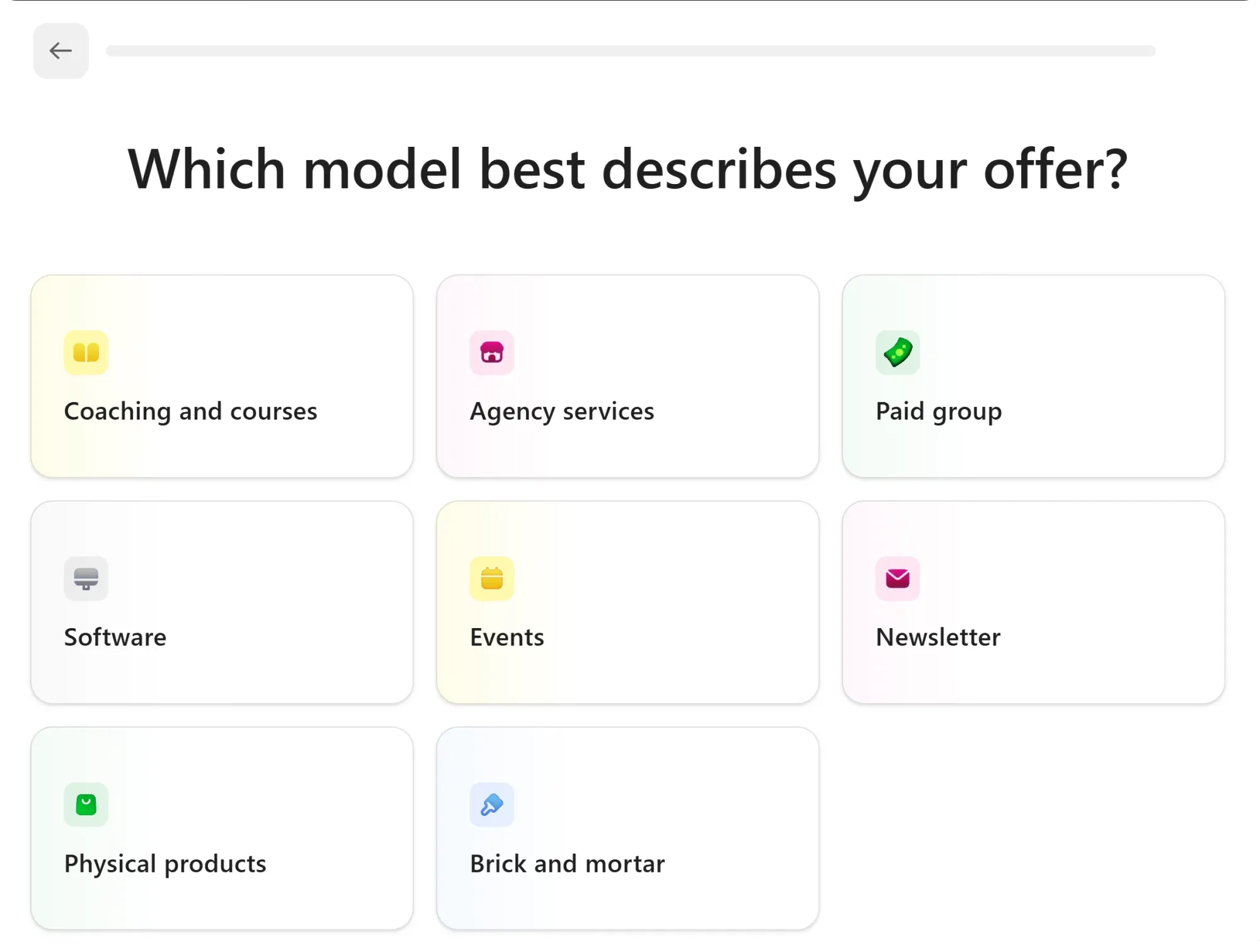
In the process of creating your whop, our onboarding steps will walk you through selecting your whop's model, category, name, headline, and it will even help you create your first product.
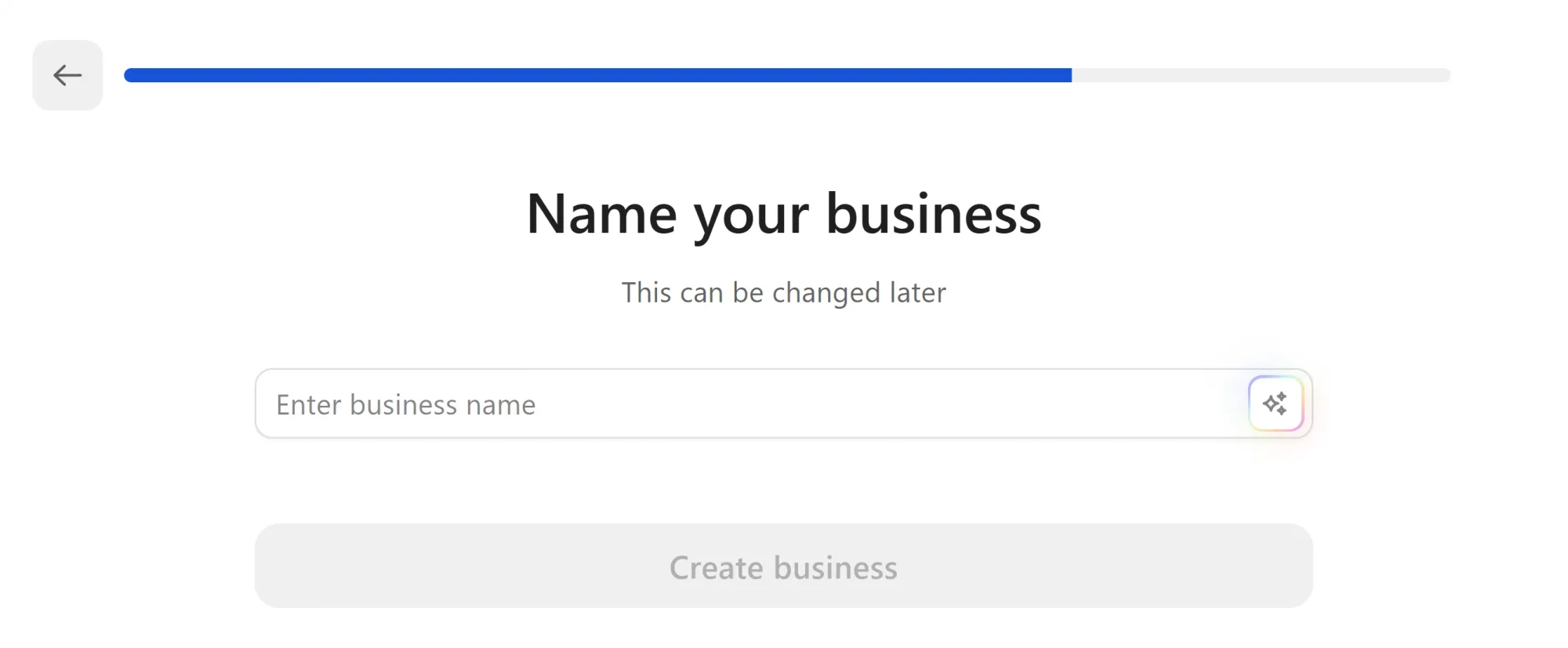
The final step of the onboarding is selecting a name for your business. If you already have one in mind, enter it into the business name field and click the Create business button.
If you haven't decided on a name yet, don't worry. Just use the Generate with AI button and let Whop make a name for you.
Don't worry too much about your business name just yet, you can always change it later.
After selecting your whop's name, you'll be walked through creating your first product.
After creating the product, you'll be directed to your new whop - it's that easy.
Add Whop apps
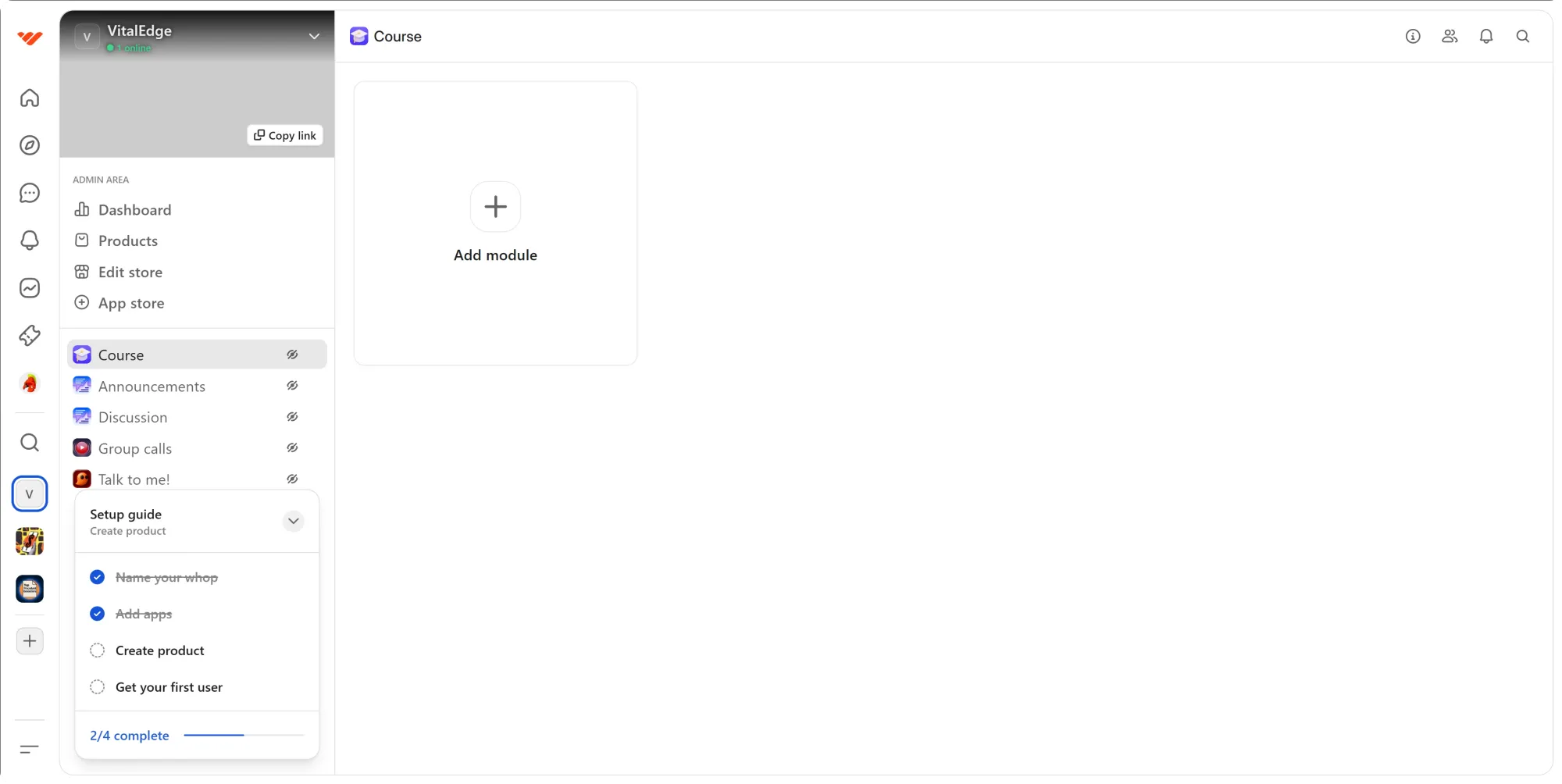
When you create your whop, it comes with a bunch of pre-installed apps. Since you've selected the course option when creating it, it will automatically have the Course app.
While you have some pre-installed apps, you should also take a look at the Whop App Store to add more to your whop. Some of our suggestions are:
- Whop Chat to create a chat room for your members
- Whop Forums to create an announcement channel where you can share news about your course and/or community
- Whop Files to create a downloadable file directory
- Whop Content to create a how-to-start document guide about your course
- Flashcards by Lemos to create flashcards to help your members memorize your course
- AI Chat by Luka to create a specialized AI chat to help your members use your whop
- Support Tickets by AC to create a support ticket system that your members can use to get help from you
How to add apps to your whop
But how do you exactly add apps to your whop?
- First, click the App store button under the Admin area of your whop. This is going to take you to the Whop App Store.
- In the App Store, scroll down to see all the available apps or use category buttons at the top to see apps in batches.
- Find the app you want to add to your whop and click on its Add button
That's it - you just added an app to your whop. Once you do so, you'll be prompted to let a product access the app.
Since you just created your whop, you don't have any products but don't worry — we're going to take a look at creating products later down the guide.
Pro tip: You can add as many apps as you want to your whop so to avoid cluttering, create categories by right clicking on the app list of your whop and selecting the Create category option.
Creating course modules with the courses app
Alright, now let's take a look at how you can use the Courses app to actually deliver lessons to users.
The lessons in the courses app are organized into chapters, and chapters are organized into modules. These lessons can be in from of video, text, PDF, or quiz.
So let's create the first module by clicking on the Add module button in the Courses app.
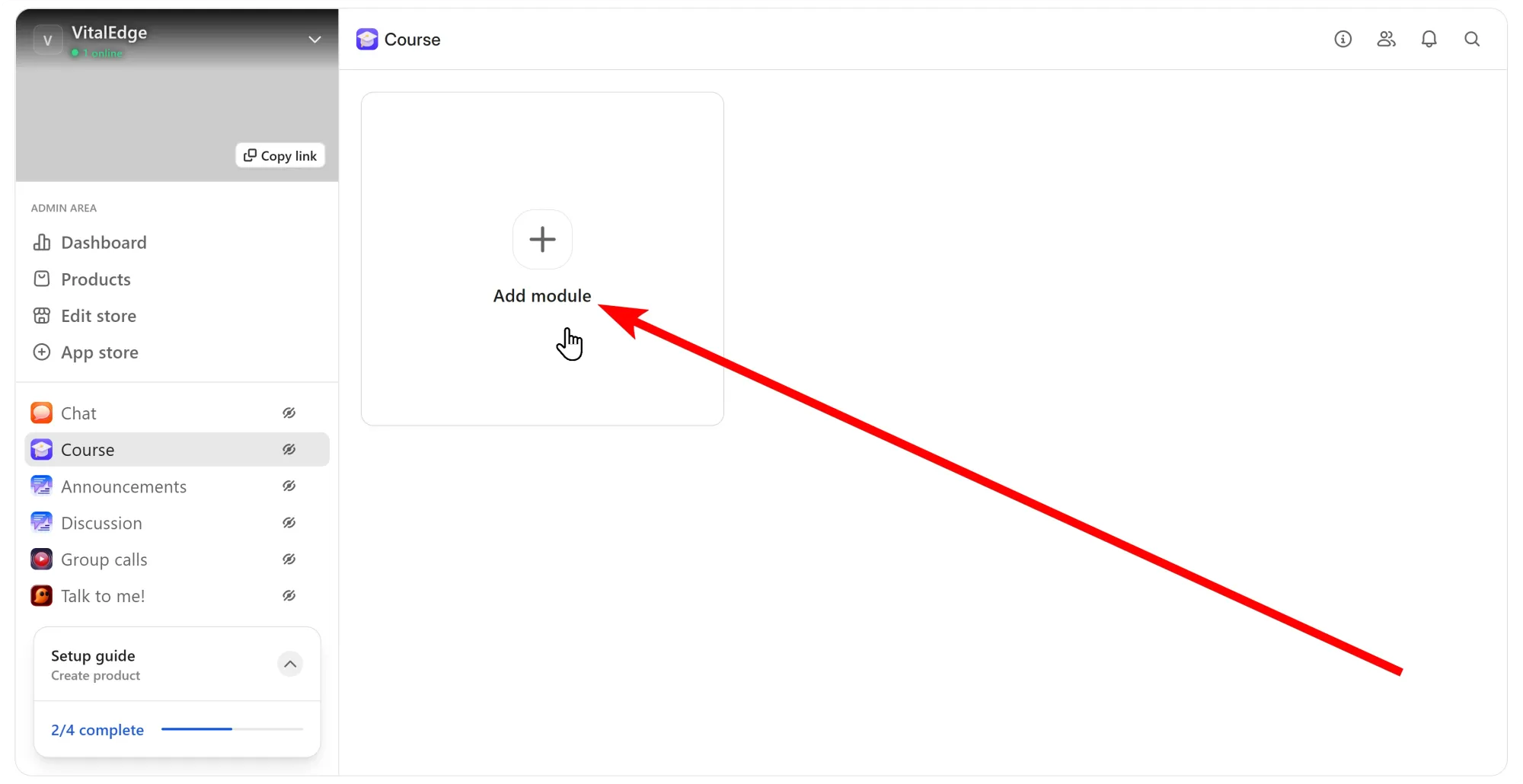
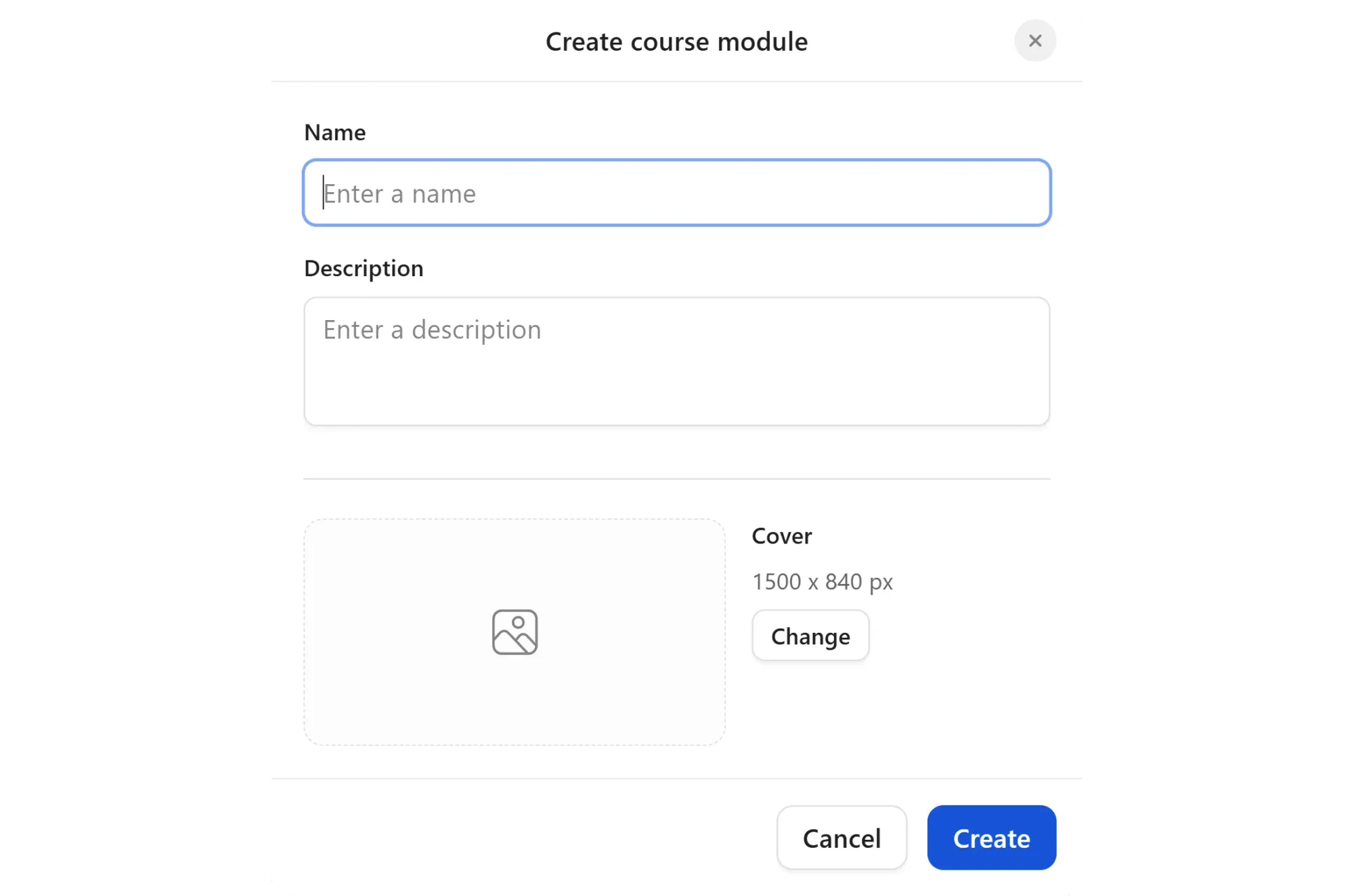
This is going to display the Create course module popup where you'll be prompted give your module a name, a description, and a cover with a recommended size of 1500x840 pixels.
Once you've filled out these fields, click the Create button to create the module.
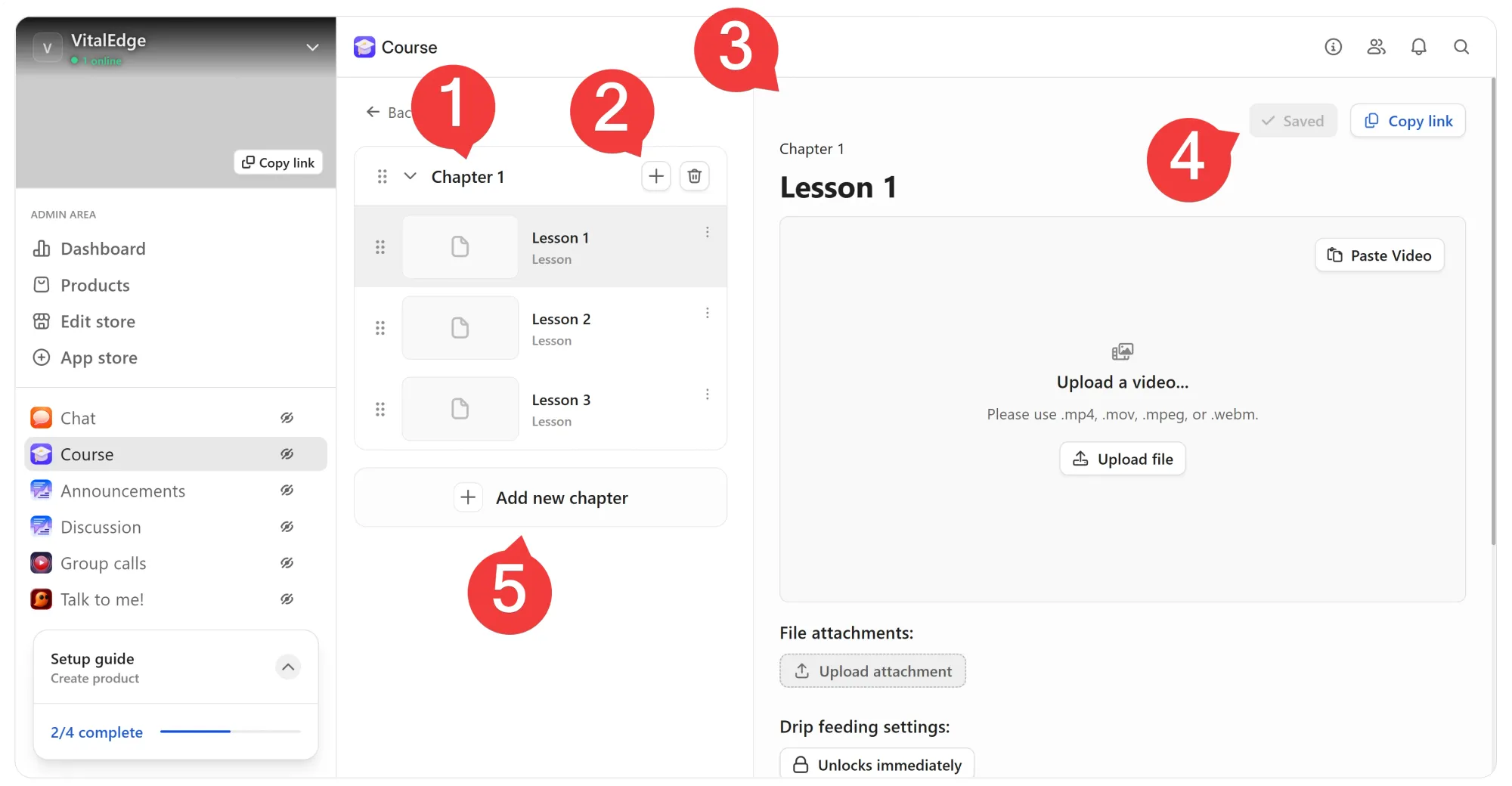
Once you create a module, you'll be directed to the module editor. There are a lot of things you can do so let's break them down:
- This is your chapter tab, you can click on its name to rename the chapter.
- By clicking this button, you can add new lessons to the chapter.
- This is your lesson editor section, you can click the lesson name to change it and use the controls below to upload files, PDFs, or configure the quiz.
- After you make changes to the lessons, make sure to click the Save changes button to publish your changes.
- Clicking the Add new chapter button will create a new and empty chapter and just like the 2nd step, you can use its add lessons button to add new lessons.
Pricing your AI course
You now have a whop, apps in it, and a functioning course, and a product that people can buy to access them.
You can create multiple products for your whop and decide which ones can access specific apps. So, let's take a look at how you can create another product.
First things first, let's click the Products button under the Admin area of your whop. This is going to take you to the products page where you can see all products you've created - although you should have one already, we'll take it from scratch.
So let's click on the Create product button to go to the product editor to create your first one.
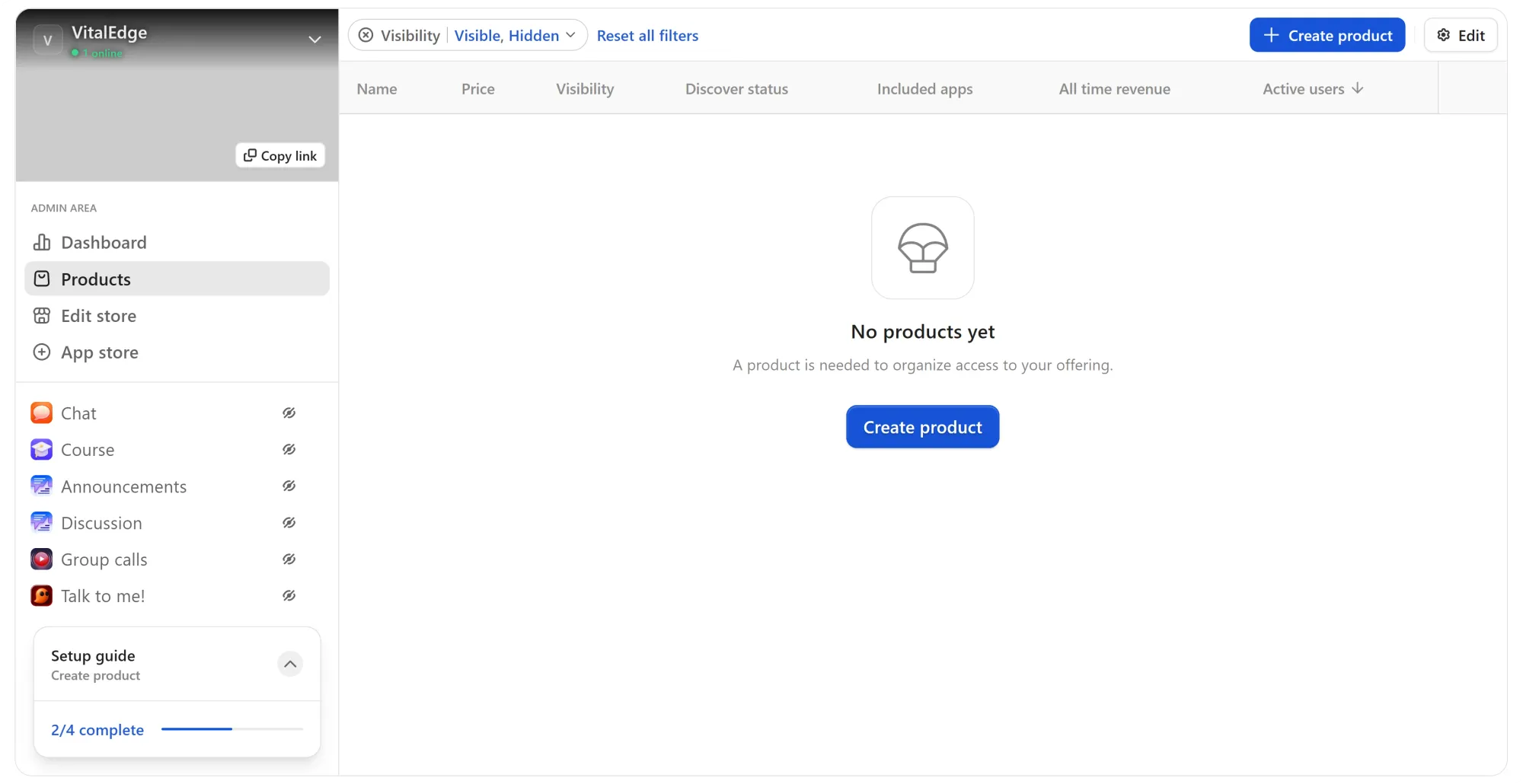
In the product editor, you're going to see the core settings of your product like title, headline, pricing, advanced settings, and which apps it can access on the left side of your screen.
On the right hand side, you're going to see the store page editor of your product. There, you can set things like the product description, features, creator social links, FAQs, and more.
Keep in mind that setting up the store page is required to put your product on Discover.
Promote & sell your course
You have a product too, great. Now it's time to make sure it's listed on Discover. You can check if your product is eligible for Discover by looking at the Discover status of it in the Products page of your whop.
If it says Unlisted then you have some boxes to check. Let's go to the store page editor by clicking on the Edit store button on the left side of your screen. There, you're going to see the requirement tracker at the bottom of your screen.
Clicking on it will display what you have to do to make your product eligible to be listed on Discover and take advantage of 2.5 million views Discover gets per week - it's also going to start ranking on search engines.
Once you meet all the requirements, you're going to see the requirement tracker change into an Apply button, which you can use to apply for Discover.
Creator spotlight: Harry Beechinor
At 21, Harry already had a crazy impressive portfolio – so why not teach the next wave of AI video creators how to prompt AI tools to produce content that gets noticed?

Born in London and now based in New York, he started making videos at 10, moving from music videos to campaigns for brands like CashApp, Paramount, Whatnot, and Iman Gadzhi, racking up millions of views along the way.
So, offering his own course, teaching others how to approach AI video in a way that feels genuinely creative, not cheesy? Kind of a no-brainer.
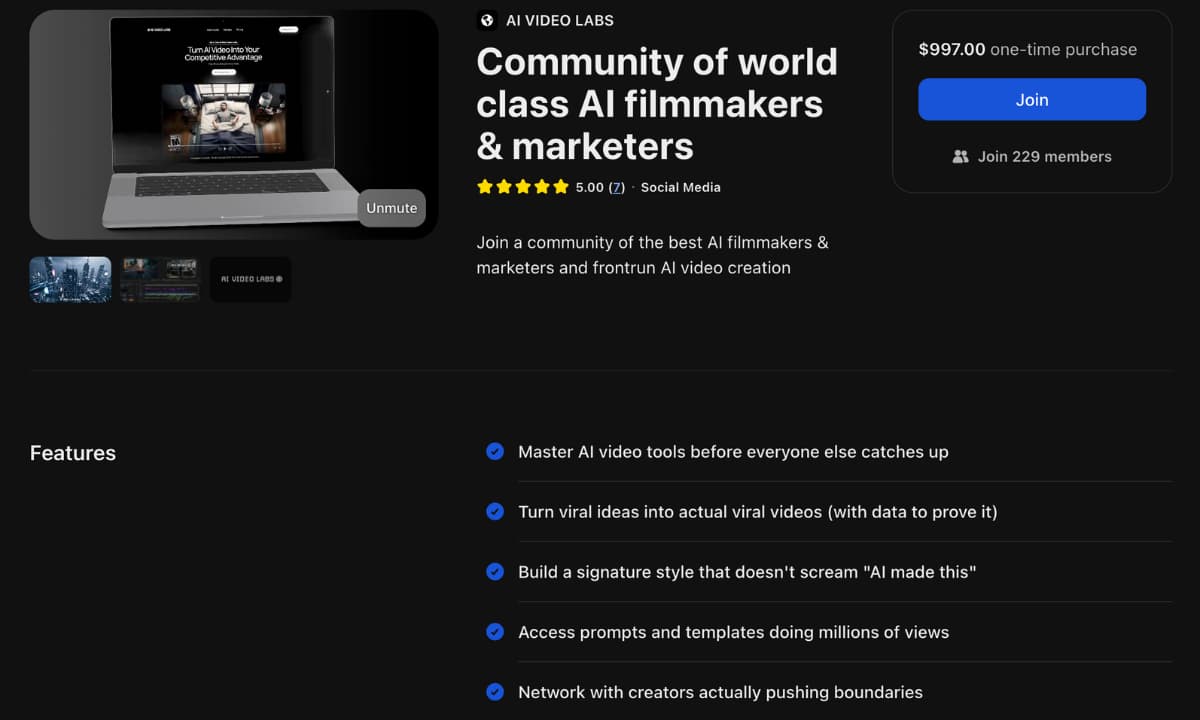
Members of AI Video Labs don’t just watch – they make, test, and iterate together, refining their skills and sharing wins along the way.
They also get:
- Viral prompts & templates: Members can access pre-tested prompts and templates that have generated millions of views.
- Community collabs: Collaboration with other creators experimenting at the cutting edge of AI video.
- Style building: Members are encouraged to build their own unique style that doesn’t scream “AI did this”.
- Networking: Opportunities to collaborate with brands looking for AI talent.
“This group is a cheat code. Insane alpha to level up AI video creation. Prob saved me hours of researching on my own to get the results I was going for.”
Honestly? Harry’s is just one example of sellers on Whop turning their AI skills into teachable, in-demand offers.
Why selling AI courses is profitable
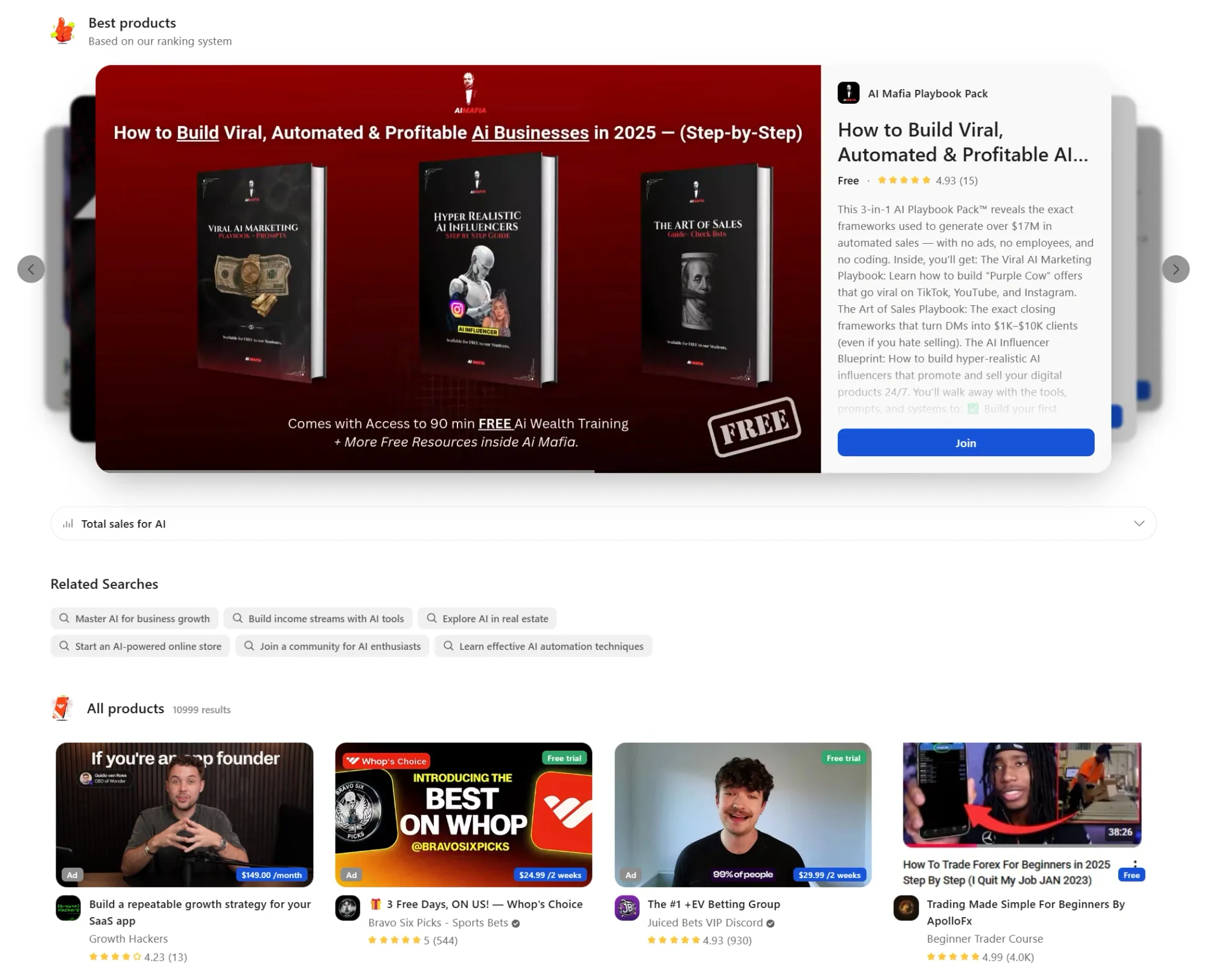
From AI video creation to content automation, browser extensions, and mobile apps, there’s a huge market of people (and companies) willing to pay for practical, proven know-how.
Selling an AI course works because:
- People pay for shortcuts: AI tools evolve daily. Even experienced creators want guidance that saves time and avoids dead ends.
- Scalable revenue: Courses let you reach dozens, hundreds, or thousands of people without trading hours for dollars.
- Recurring income potential: Live workshops, templates, prompt libraries, and memberships keep the revenue rolling.
- Authority & network: Teaching AI builds credibility, which leads to consulting gigs, freelance projects, or collaborations.
- First-mover advantage: Early AI course creators capture the audience while demand is exploding, but supply is still limited.
Can you turn your own AI skills into teachable, structured content? Cool, you can tap into a market that’s actively hungry for knowledge.
Doing it on a platform like Whop makes scaling easier, from course delivery to community management and most importantly, payments.
Turn your AI skills into a course worth paying for with Whop
Harry had years of creative experience, combined it with AI, and turned that knowledge into a course and community that people are lining up to join. You can, too.
The demand is there – millions of people are hungry to learn how to use AI to create content and build businesses. But they don’t want to waste hours on YouTube getting stuck with outdated prompts. They want clarity, shortcuts, and someone who’s been there before — that’s where you come in.
Whop makes it easy to package your expertise into something people will pay for. Use the Course app to structure lessons, the Chat app to build your community, the Calendar app to run live sessions, and the App Store to add whatever else makes your course unique.
You have the skills; we can help you turn them into an income stream. Launch your AI course on Whop today and start teaching, earning, and leading the next wave of creators.