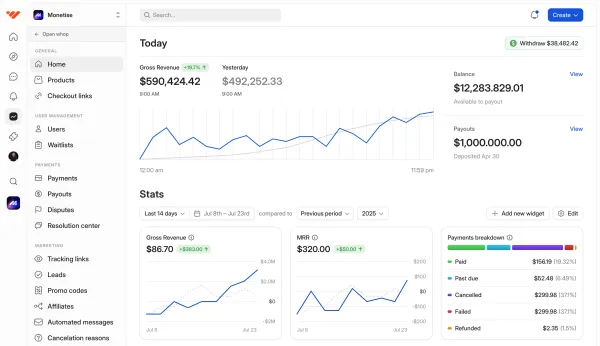
Whop Migrations are here. Learn how to move your business subscriptions and payments from Stripe to Whop in a single click.
Key takeaways
- Whop Migrations moves Stripe subscriptions and payment tokens together, so billing continues uninterrupted and customers do nothing.
- Preview scans, exclusion lists, and duplicate detection let you review and rerun migrations without double-charging anyone.
- Whop undercuts Stripe on card and subscription rates while adding built-in payment orchestration, BNPL, and crypto.
The biggest risk in switching platforms isn't the migration itself. It's your MRR.
When thousands of active subscriptions are generating revenue every month, even small mistakes can cost you big time.
Whop Migrations transfers your customer payment methods and active subscriptions over from Stripe (with support for other platforms on the way).
Billing continues uninterrupted, without customers needing to re-enter payment details or sign up again.
How Whop Migrations works
The key to migrating without losing revenue is moving the payment method alongside the subscription.
When a customer subscribes on Stripe, their card details are stored as a payment token. This is a secure reference Stripe uses to charge the customer each billing cycle.
Whop Migrations transfers both the subscription and that payment token from Stripe. Because the token moves with the subscription, customers are charged on their normal renewal date without re-entering their details or taking any action.
PSA: Whop doesn't handle raw card data at any point in the process. Payment tokens are transferred via a PCI-compliant transfer.
Preview details before confirming
Before anything moves, Whop runs a preview scan of your Stripe account showing exactly which subscriptions are eligible. Nothing changes until you confirm.
Once confirmed, migrated Stripe subscriptions are automatically scheduled to cancel at the end of their current billing period.
Whop takes over billing from there, so your customers won't be charged twice.
What will my customers see?
Your customers won’t need to do anything, but they will notice a couple of things:
- Stripe will automatically send them a cancellation notification. This is expected and unavoidable, it's Stripe's standard process.
- At the same time, they'll start receiving billing emails from Whop for future charges.
To avoid any confusion, we recommend letting customers know about the transition before you migrate (via a push notification, email, or SMS).
Customers who do reach out can be reassured by a simple message letting them know that their subscription is active, their billing is moving to Whop, and nothing changes on their end.
Running your first migration
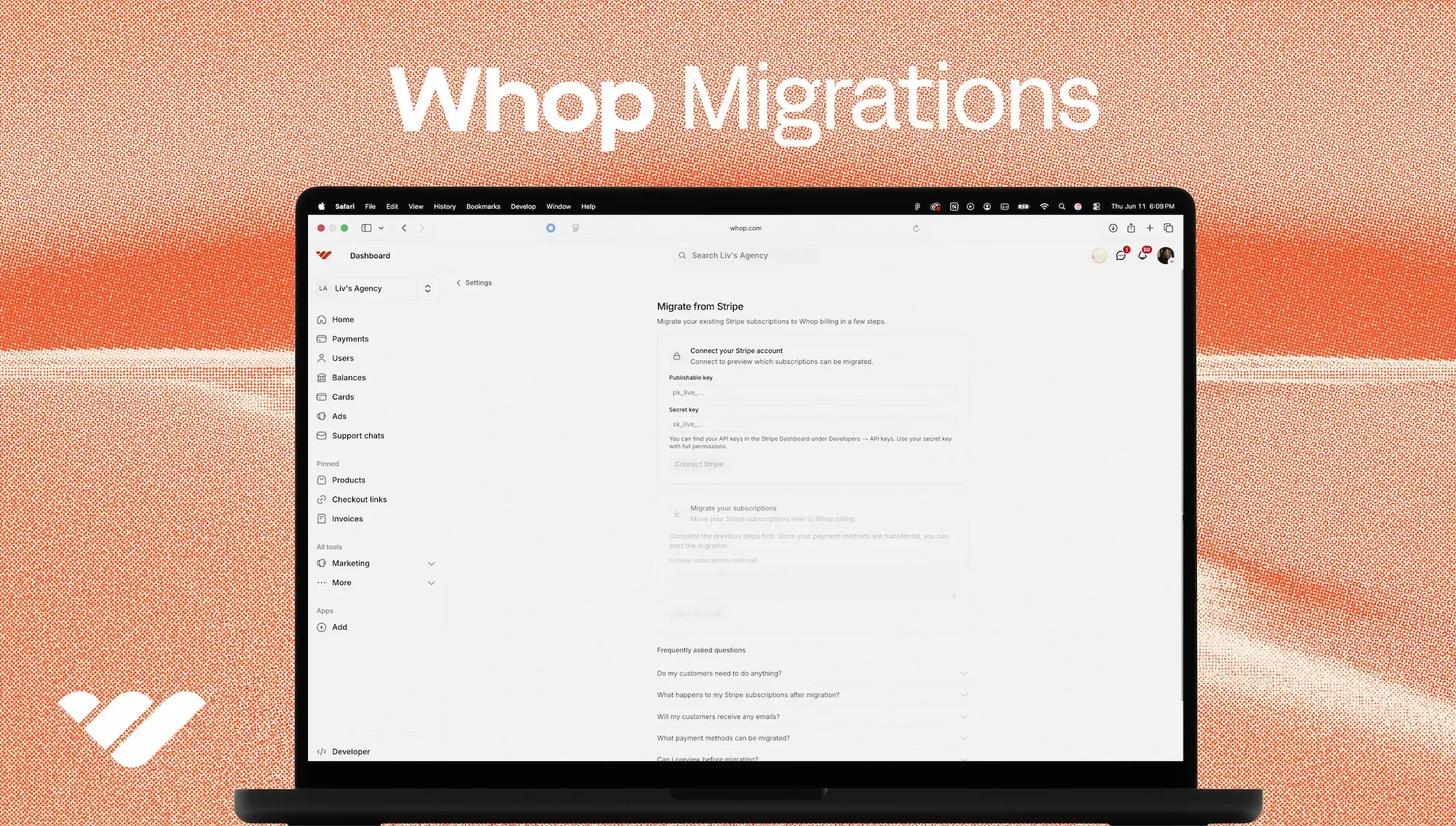
On your Whop business dashboard, head to ‘Settings’, then ‘Migrations’, and select Stripe.
Step 1: Connect your Stripe account
Enter your Stripe Publishable key and Secret key. You'll find both in your Stripe Dashboard under ‘Developers’, then ‘API keys’.
Use your secret key with full permissions. Once connected, you are able to run a preview scan to see which subscriptions can be migrated.
Step 2: Review & prepare
The preview shows every subscription that will migrate: customer, product, amount, billing cycle, and next renewal date.
No changes are made at this stage. If anything looks off, you can re-scan before proceeding.
To transfer payment methods, copy the unique Whop email address shown on screen. Add it to your Stripe Dashboard under 'Settings', then 'Team' and assign the 'Data migration specialist' role.
Let us know you've sent the invite, and Whop handles the transfer and emails you when it's complete.
Step 3: Exclude subscriptions (optional)
If there are specific subscriptions you don't want to migrate, paste their email addresses or Stripe subscription IDs into the exclusion field before confirming.
Step 4: Start migration
Click ‘Start migration’. You'll be asked to confirm that you've reviewed the preview, read the FAQ, and understand that your Stripe subscriptions will move to Whop billing.
Confirm and Whop takes it from there.
Step 5: Download your migration report
Once complete, the dashboard shows exactly how many subscriptions migrated and how many failed. Download the full CSV report for a line-by-line record of what moved, what didn't, and why.
Need to run the migration again? Previously migrated subscriptions are automatically detected and skipped – no duplicates.
Why make the move?
Stripe runs your card payments. Whop gives you everything to run your entire business in one end-to-end API.
Subscription billing is handled natively using payment orchestration to maximize authorization rates, with smart retries if a transaction fails.
All with low, pay-as-you-go rates:
| Whop | Stripe | |
|---|---|---|
| Card rate (domestic) | 2.7% + $0.30 | 2.9% + $0.30 |
| Subscription billing | 0.5% | 0.7% |
| Payment orchestration | 0.8% (built-in, toggle on or off) | Need to contact sales |
Plus, all businesses get access to 100+ local payment methods, BNPL, embedded checkout, and built-in crypto payments.
One click moves your subscriptions and payment tokens in about 30 seconds, with billing continuing uninterrupted.
"Whop gives me peace of mind — I don't have to worry about our payment stack working. Our team has gotten back so much time."
— Nick Lawton, CEO of SideShift
Migrate your customers to Whop with one click
Moving subscriptions typically means exporting customer data, waiting on support tickets, then manually rebuilding every product, price, and subscription by hand.
All while hoping you don’t break a billing cycle or double-charge someone along the way.
For a business with thousands of active subscriptions, that's weeks of high-risk, tedious work, with your MRR on the line the entire time.
Whop Migrations moves payment tokens and subscriptions together, allowing billing to carry on without a hitch. And your customers don't have to lift a finger.
Use Whop Migrations to seamlessly move your subscriptions in 30 seconds.
Whop Migrations frequently asked questions
What payment methods can be migrated?
Only subscriptions paid with a credit or debit card can be migrated. Stripe Link, ACH, SEPA, and other non-card payment methods are not supported.
What if a customer updates their payment method after the data transfer?
Any payment method updates made after we initiate the data transfer will not be included in the transfer. The subscription will be migrated with the payment method at the time of the data transfer.
Which subscription statuses can be migrated?
Only active and trialing subscriptions are migrated. Past due, canceled, and expired subscriptions are skipped.
Can I run the migration more than once?
Yes. Previously migrated subscriptions are automatically detected and skipped, so you won't get duplicates.
What if a customer doesn't have an email on Stripe?
Customers without an email address on their Stripe record cannot be migrated. Make sure all customers have an email set in Stripe before starting the migration.
Is there a minimum subscription amount?
Yes, subscriptions under $1 cannot be migrated.