Set up Tap to Pay on iPhone and take contactless card payments in person, without a card reader or terminal. This guide covers requirements, where it works, step-by-step setup on Whop, and other providers.
You don't need a terminal or reader to accept card payments - using Tap to Pay on iPhone allows you to take them anywhere, with no setup fee or monthly cost.
You'll need an iPhone XS or later, typically running the latest version of iOS, and a payments provider with an app that supports the capability - we list the top options below.
Apple currently offers Tap to Pay on iPhone in 60 countries and regions, but each has its own list of providers and processors that support it.
On Whop, you can accept contactless payments using your iPhone in Australia, Canada, Poland, the United Kingdom, and the United States, at your usual Whop card transaction rate.
This article looks at Tap to Pay on iPhone's requirements, how to get set up, using it via Whop, and its associated fees and payouts.
What is Tap to Pay on iPhone?
Tap to Pay on iPhone is Apple's contactless payment solution that allows businesses to take payment with only an iPhone (no terminal or POS needed).
Using built-in NFC (near-field communication) technology, it lets customers pay by tapping their contactless card, or a phone or watch with a digital wallet (Apple Pay, Google Wallet, Samsung Wallet).
Rather than operating as a standalone Apple app, Tap to Pay on iPhone is a feature integrated into supported payments apps like Whop, Stripe, and Square.
These apps handle payment processing, allowing businesses to accept card payments on their phone without investing in additional hardware.
According to its developer docs as of October 2026, Apple supports the feature in 60 countries and regions - but availability also depends on whether your chosen payments app offers it in your location.
Not every provider operates in every Apple-supported market.
What do you need to use Tap to Pay on iPhone? Requirements and limitations
To use Tap to Pay on iPhone, you need an iPhone XS or later, running a recent version of iOS (iOS 18 or later on Whop; other providers may set a different minimum).
You also need to be operating from a location where both Apple and your chosen provider support the feature.
The feature has other requirements, too:
- iPhone only: iPads can't accept Apple's tap to pay solution, only iPhones. The feature works on iPhone XS and later models. Sellers with an Android phone need a provider that supports Tap to Pay on Android instead.
- Device and connectivity: You'll need a stable internet connection to accept payments. Be mindful of cases or accessories that could obstruct the NFC antenna, too, as these can interfere with card reading.
- Needs a supported payments provider and app: Tap to Pay on iPhone doesn't work independently. Some providers integrate it into a full point-of-sale (POS) system with product catalogs, tipping, receipts, and inventory management, while others offer more basic payment acceptance.
- Availability varies by provider: Apple supports 60 countries and regions, but individual providers and apps only offer it in selected markets, so check your provider's supported countries.
- Designed for in-person payments: Each tap authorizes a single transaction. Being able to save a customer's card for future purchases or recurring payments depends on your provider's app and agreement.
It's also worth noting Apple doesn't set the rate for tap to pay transactions; your provider determines the pricing.
On Whop, Tap to Pay on iPhone transactions follow the same rate as your typical card processing fee (2.7% + $0.30 in the United States for domestic cards).
Is Tap to Pay on iPhone secure?
Yes. As Apple Platform Security's Tap to Pay on iPhone documentation explains, when a customer taps, the card data is read and encrypted inside the iPhone's Secure Element, a chip built for payment data, so the seller's app never sees the card number.
Only your payment provider can decrypt it. If the customer enters a PIN, it’s captured the same way and is never visible to you.
Apple also doesn’t store card numbers or PINs on its servers, and the iPhone blocks screenshots and screen recording during a transaction.
If your customers hesitate, you can tell them that their card details go straight to the payment processor, encrypted.
How to use Tap to Pay on iPhone
Merchants can set up Tap to Pay on iPhone and start accepting contactless payments through their payment provider's app.
The exact process varies by provider, but the general steps are typically:
- Download and set up your payments app: Install the latest version of your provider's app from the App Store and sign in to your business account. When prompted, accept the terms and conditions to enable the feature and configure your device. Depending on your provider, you may have to complete KYC or verification checks.
- Start a transaction: It's best to test a transaction before you present your iPhone to a customer. Open the app, and go through whatever your provider's flow is for putting through a payment. Have another device or one of your own cards ready to complete the first transaction. Some apps (like Whop) also allow you to ask for a tip before proceeding to the payment.
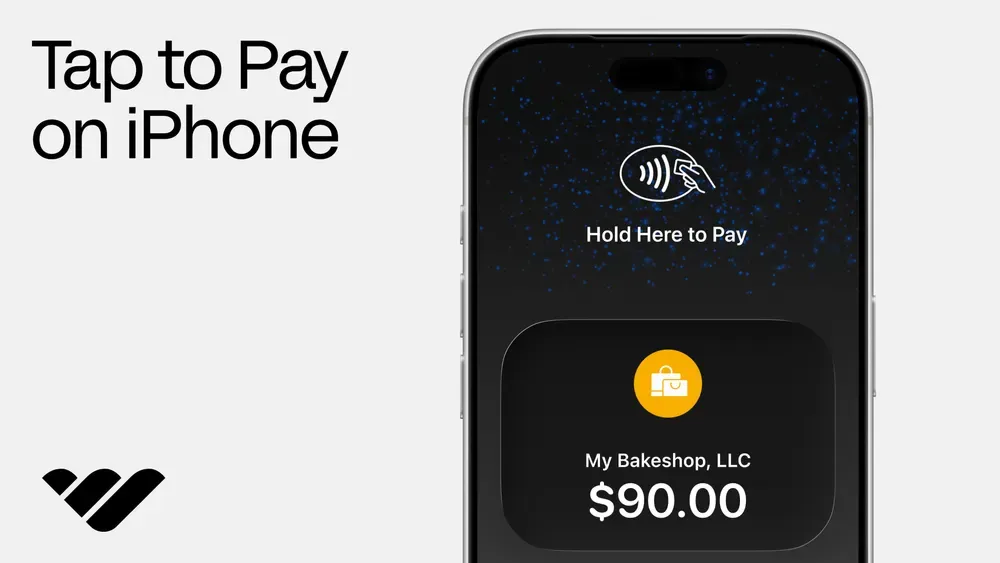
- Select Tap to Pay on iPhone: Choose the contactless payment option for Tap to Pay on iPhone, and open the customer-facing payment screen. This should display the transaction amount, your business name, and have a visual cue showing where to tap.
- Present your iPhone: Hold your device steady and ensure you don't have a thick case or any accessories mounted that could interfere with the NFC antenna. Have the customer hold their card or device over the contactless symbol for a few seconds. Tap to Pay on iPhone typically shows a checkmark to confirm the card or device has been read successfully.
- Provide a receipt: Once the payment is approved, send yourself a receipt using the options available in your app. Most providers offer receipts via email, text message, or a QR code.
If the above flow works with no hiccups, you're all set to start charging real customers using Tap to Pay on iPhone.
Setting up and accepting Tap to Pay on iPhone with Whop: Step-by-step
Whop lets sellers accept in-person contactless payments through its iOS app, with sales appearing alongside your online transactions. This is particularly useful for sellers running IRL events or stalls, or selling services and products while roaming.
The feature is available to businesses based in the US, Australia, the UK, Poland, and Canada (as determined by your business address in your Whop tax settings). Payments are then charged in the corresponding currency.
Here's how to set it up.
Step 1: Open your product's payment link
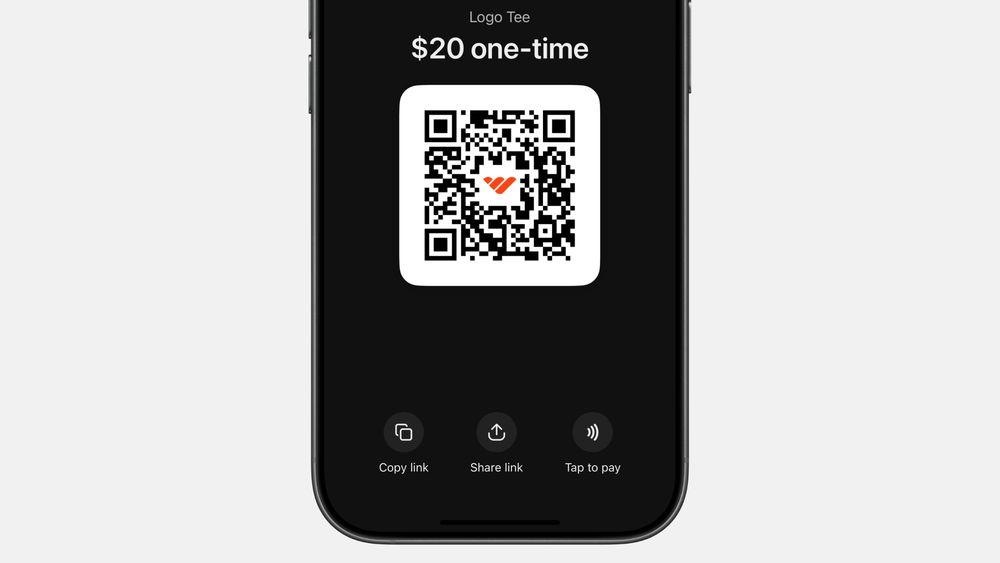
Open up the Whop iOS app and select the product you're selling to create a checkout link.
Tap the checkout link and it will open on your phone with a payment QR code and the "Tap to Pay" icon in the bottom right-hand corner.
Note: The product must be set up for a one-time payment, as Whop doesn't support subscriptions through Tap to Pay on iPhone.
Alternatively, if you've already created a checkout link, open it up from your business account dashboard under "More" and then "Payment Links"; the same screen will appear.
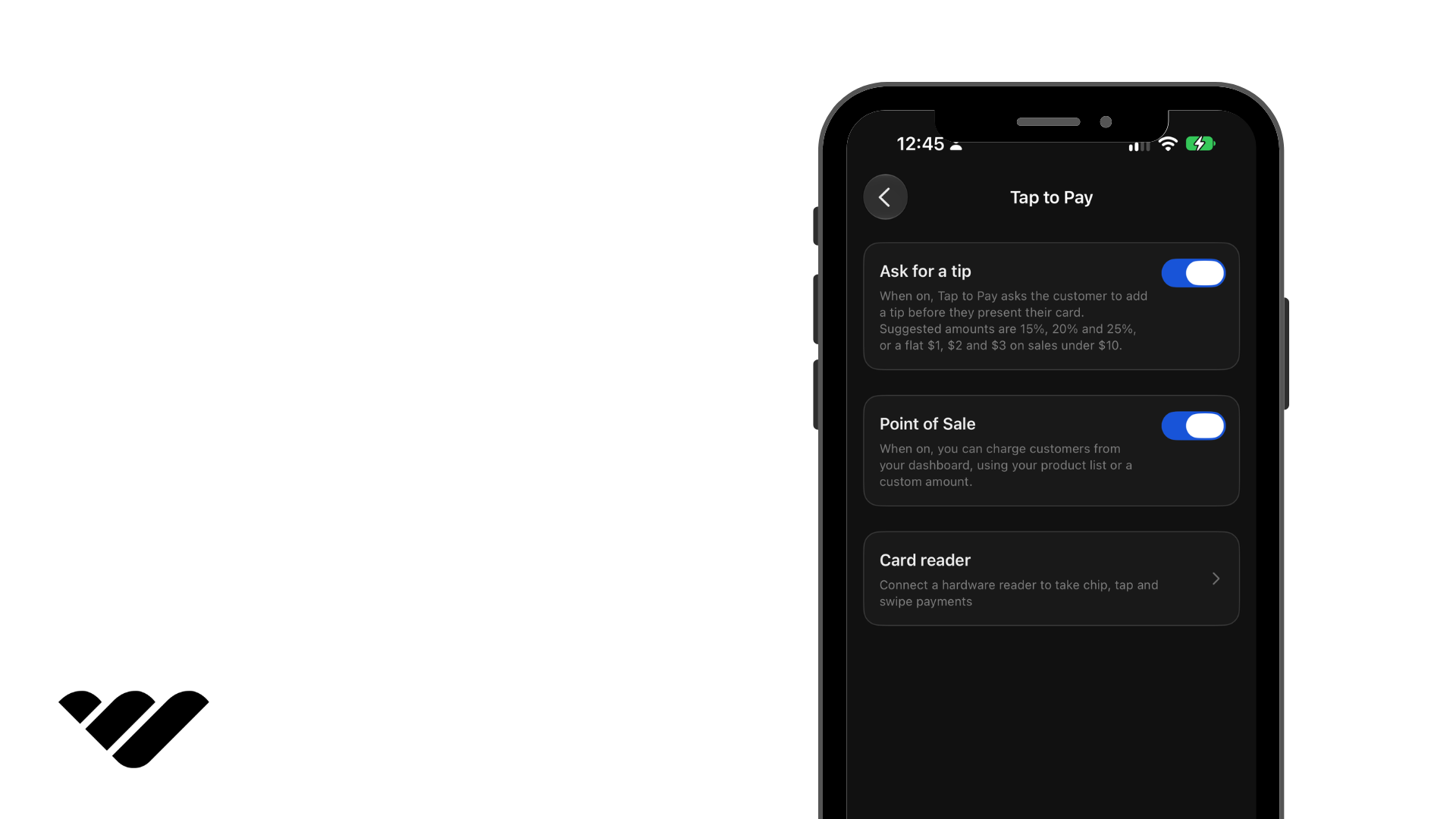
To charge a custom amount, turn on "Point of Sale" in "Settings" then "Tap to Pay". You can also ask for a tip before the customer presents their card.
Step 2: Tap the Tap to Pay button under the QR code
Select Tap to pay beneath the checkout QR code to begin the transaction.
If it's your first time using the feature on that iPhone, follow the prompts to accept Apple's terms and complete the initial device setup. Once configured, you won't need to repeat this process for every sale.
Step 3: Confirm the amount and hold out your iPhone
Check the amount displayed before proceeding.
The customer-facing screen then displays the payment amount and prompts them to hold their card or device near the top of your iPhone, where the NFC antenna is located.
Step 4: Customer taps their card or phone
Have the customer hold their contactless card, phone, or smartwatch near the top of your iPhone until it's read.
Whop supports contactless Visa, Mastercard, American Express, and Discover cards, along with Apple Pay and other supported digital wallets. Customers can also pay with an Apple Watch or an Android phone.
Cards without contactless functionality can't be tapped. If that’s the case for your customer's card, share the Whop checkout link or have the customer scan its QR code to pay online.
Step 5: Confirmation and receipt
Once the payment is approved, the iPhone screen displays a confirmation.
This is also where the customer can enter their email address to receive a digital receipt.
The transaction appears alongside your online sales in the Whop dashboard, with the funds added to the same Whop balance and paid out through your usual payout method and schedule.
See our guide to getting paid on Whop for more on balances and withdrawals.
Running Tap to Pay on iPhone at an event
Live events are where Tap to Pay on iPhone can be particularly useful for sellers who predominantly use an online setup, and don't want to invest in hardware they aren't going to use regularly.
In August 2026, Whop businesses processed $951K across 1,386 taps from 217 companies, and the two biggest users show it works at both ends of the price range.
- High-ticket sales with a team of reps: She Sells Academy had more than 25 sales reps taking payments with Whop’s Tap to Pay on iPhone at its Women & Wealth conference in Fort Lauderdale. The team made 145 sales worth $675K in a single day, including 82 sales at $2,000 and 15 at $23,000.
- Low-ticket, high-volume merch: At its annual live summit in Dallas, the Women’s Real Estate Investing Network (WREIN) ran its merch store on Tap to Pay on iPhone: 567 taps at an average of $36, for around $20,000 in sales.
Tips for event day
While Tap to Pay on iPhone is generally a reliable payment method, the below tips can make sure you don't run into trouble during an event when things are already busy.
- Collect the customer’s email after the tap: The customer can enter their email for a receipt once the payment goes through. If you use the email for anything after the sale (contracts, a CRM, follow-ups), make it part of your staff’s routine before handing the phone back.
- Have a fallback ready: Print your checkout link’s QR code for chip-only cards, subscription products, and anyone who’d rather pay on their own phone.
- Plan for connectivity: Tap to Pay on iPhone needs an internet connection, so test the venue’s Wi-Fi or mobile signal before doors open, and bring a power bank.
- Do a test tap: Run a transaction using your own card before the first customer arrives.
- Enable tips: As shown in the image below, sellers using Whop's Tap to Pay on iPhone can enable an "Ask for a tip" toggle. When this is on, Tap to Pay asks each customer to add a tip before presenting their card. Suggested amounts are 15%, 20%, and 25%, or a flat tip of $1, $2, and $3 for transactions under $10. Head to "Settings" in your business dashboard and select "Tap to Pay" to enable.
Tap to Pay on iPhone fees and payouts
Whop charges its standard card processing rate for Tap to Pay on iPhone, starting at 2.7% plus a fixed transaction fee.
There are no hardware costs, setup fees, or monthly subscription fees.
| Cost | Tap to Pay on iPhone with Whop |
|---|---|
| Standard rate (domestic cards) | 2.7% + $0.30 |
| International cards | +1.5% if applicable |
| Hardware | None; your iPhone is the terminal |
| Setup fee | None |
| Monthly fee | None |
The same standard rate applies to all businesses in countries and regions where Tap to Pay on iPhone is supported by Whop.
That 2.7% + $0.30 is the same standard rate you pay when a customer checks out online, so one rate covers your in-person and online sales.
Not every provider works this way - Stripe adds 10¢ per authorization for tap to pay, on top of its in-person card rate.
You also skip the cost of a card reader, which typically starts at $29-$59 with other providers.
- One $50 tap to pay sale: $1.65 in card processing fees (2.7% + $0.30), leaving you $48.35.
- A day at a market stall: 40 sales at $25 each bring in $1,000. Card processing fees come to $39 ($27 at 2.7%, plus $12 in 30¢ fixed fees), leaving you $961.
If a customer taps a card issued outside your business's country (for example, at events with traveling attendees), an extra 1.5% applies.
In-person sales land in the same Whop balance as your online sales, and show up together in your dashboard.
Funds are available to withdraw within 1-4 business days, with standard payouts taking up to 5 business days. You can also opt to use instant payouts to receive funds in minutes.
What about refunds and disputes when using Tap to Pay on iPhone?
You refund a tap like any other card payment: from your payment provider’s app or dashboard, back to the card or wallet the customer used.
Refunds usually process quickly on the provider’s side, but the customer’s bank can take longer to post the money. Processing fees are usually not returned when you refund.
Disputes can be different. Because the customer’s card or device is physically tapped, Tap to Pay on iPhone payments count as card-present transactions. That helps against fraud claims.
Customers can still dispute a sale for other reasons, like not receiving what they paid for, so keep a record of every sale, including the customer’s email if they entered one for a receipt - and encourage them to take receipts for added protection.
How refunds and disputes work on Whop
To issue a refund, go to your Whop Dashboard, head to “Payments”, select the customer's payment, choose to refund the full or a partial amount, and confirm.
Refunds are processed immediately, and customers typically see the money returned to their original payment method within 3-7 business days.
Whop doesn’t return processing fees on refunds, so you pay back the full amount the customer paid.
Refunding a $50 tap, for example, costs you the $1.65 in fees on top of the $48.35 you received. There’s no extra charge for issuing the refund.
When a customer disputes the transaction, the disputed amount plus a $15 dispute fee is deducted from your balance.
You then have 7-21 days to submit evidence through the Dispute Fighter (within your business dashboard).
Whop will automatically upload key evidence (access logs, policy disclosures, customer info) on your behalf, and you can add additional proof (like receipts, if collected) when you submit your response.
If you win, the disputed amount is returned to your balance. If the customer wins, there's no further action as Whop already deducted the disputed amount.
Card and transaction limits for customers
Transaction limits are set by card networks and issuers, as well as some providers (Square’s are $50,000 per contactless payment and $10,000 per physical card). Other providers mentioned in this article have no published transaction limit for tapped payments.
While some physical cards from certain issuing networks may need a PIN for transactions above a certain amount, digital wallets like Apple Pay usually don’t need one, because the customer has already verified on their own device.
There are also specific cards from banks in countries like the UK, Canada, and Finland that must be inserted, which a phone obviously can’t accept. Offer a digital wallet or your payment link to customers with these cards instead.
The UK used to have a £100 contactless limit, but it no longer applies across the board. From March 19, 2026, an FCA rule change lets UK banks and payment providers set their own contactless limits.
Tap to Pay on iPhone vs payment links and QR codes
Use Tap to Pay on iPhone when the customer is in front of you with a contactless card or phone wallet; use a payment link or QR code for everything else - remote customers, subscriptions, and chip-only cards.
On Whop, both in-person and online transactions cost the same 2.7% + $0.30, so most sellers should run both.
| Factor | Tap to Pay on iPhone | Online checkout (link or QR code) |
|---|---|---|
| Seller needs | iPhone XS or later | Any phone or computer |
| Where | In person | In person or online |
| Customer pays with | Contactless card, Apple Pay, or another mobile wallet (no chip-only cards) | Any card, Apple Pay, Google Pay, or other methods at checkout |
| Payment types | One-time per tap; saving a card for later charges varies by provider | One-time and subscriptions |
| Availability | 60 countries and regions, varies by provider | Wherever your provider operates |
Tap to Pay on iPhone is the easiest payment method when the customer is standing in front of you and paying once: a stall, a pop-up, a service you've just delivered. The customer taps and the payment clears.
Payment links and QR codes are the fallback for everything Tap to Pay can't do, and are the most flexible way to accept credit card payments without a card machine.
- Works from any phone, including Android
- Works when the customer isn't with you
- Handles subscriptions and recurring billing
- Works in any country your provider operates in
- Customers with chip-only cards can pay this way too
If you have a physical location, print the QR code and put it by the register or around your stall or pop-up. Make it clear on printouts which code is for which product if you're selling more than one.
For a seller who is mostly online, the practical setup is enabling both. Use Tap to Pay on iPhone for events and in-person work, and a payment link or QR code as the catch-all.
Sellers with an Android phone can't use Tap to Pay on iPhone, but can use Whop's checkout links and QR codes for in-person sales. Providers like Square, Stripe, and Adyen offer an equivalent Tap to Pay on Android feature in their apps.
Other providers that offer Tap to Pay on iPhone
Whop is one of many providers offering Tap to Pay on iPhone in the US and other markets. The list also includes Stripe, Square, Adyen, Venmo for Business, PayPal Point of Sale, and more.
| Provider | US rate per tap | Markets | Minimum iOS | Best for |
|---|---|---|---|---|
| Whop | 2.7% + $0.30 | US, Canada, UK, Australia, Poland | iOS 18 | Online businesses adding in-person sales at events, stalls, and pop-ups |
| Stripe | 2.7% + $0.05, + $0.10 per Tap to Pay authorization | 22 countries, including the US, Canada, UK, and Australia, plus 17 in public preview | Recent versions, per Apple's supported list | Businesses already on Stripe, or teams building Tap to Pay into their own app |
| Square | 2.6% + $0.15 | US, Canada, UK, Australia, Ireland, France, Spain, Japan | Latest iOS | Retail and hospitality businesses that want a full POS |
| PayPal Point of Sale | 2.29% + $0.09 | US, UK, and eight European countries | iOS 16.4 | Low-cost in-person selling, with funds in your PayPal balance |
| Venmo for Business | 2.9% + $0.09 | US | iOS 16 | Small sellers whose customers already use Venmo |
| Adyen | Interchange and scheme fees, plus 0.60% and $0.13 (Visa and Mastercard) | 36 countries across North America, Europe, Asia-Pacific, Latin America, and the Middle East | iOS 18.4 | Enterprise and multi-country businesses |
| U.S. Bank (Elavon) | 2.60% + $0.12 (through U.S. Bank's talech Mobile app) | US | Latest iOS | Businesses that want a merchant account with their bank |
| Chase | 2.6% + $0.10 | US (Canada for larger merchant clients) | Latest iOS | Chase business banking customers who want same-day deposits |
| Cash App Business | 3% flat | US | iOS 16.7 | Casual sellers who want a simple percentage with no fixed fee |
The table above offers a quick glance at the top Tap to Pay on iPhone providers and their fees, markets, and best use cases. Below is a detailed breakdown of each.
Stripe
Stripe offers Tap to Pay on iPhone through the Stripe Dashboard app or custom applications built using the Stripe Terminal SDK.
It works for businesses that want a simple way to accept in-person contactless payments, and platforms building them into their own software.
To accept a payment without any coding, open the Stripe Dashboard app, tap the "+" icon, select "Charge a card", enter the amount, and choose "Tap to Pay".
You'll need an iPhone XS or later with a passcode, iCloud sign-in, and location permissions enabled (Stripe docs, “Accept in-person payments without writing code”).
Stripe accepts all major contactless cards and digital wallets, including Apple Pay, Google Pay, and Samsung Pay.
Businesses with a custom Stripe Terminal integration can also save a tapped physical card for future online payments (mobile wallets can't be saved this way).
- Pricing: 2.7% + $0.05 per in-person card transaction, plus $0.10 for each Tap to Pay authorization (in the US).
Square
Square has Tap to Pay on iPhone integrated into its POS, Retail POS, Appointments, and Invoices apps.
It works across all of Square's POS modes, from retail to full-service restaurants. If multiple staff members are sharing a device to process contactless iPhone payments, use the Square Retail POS app, which supports Tap to Pay when you're signed in with a device code (the Point of Sale and Appointments apps don't).
To enable it, open a supported Square app and navigate to "Settings", "Account", then "Tap to Pay on iPhone". At checkout, select "Charge", then "Tap to Pay" to accept a contactless card or digital wallet.
You'll need an iPhone XS or newer running the latest version of iOS, with a passcode, automatic date and time settings, and a stable internet connection.
- Pricing: 2.6% + $0.15 per tap in the US, with no additional card reader required. Square supports contactless payments up to $50,000, subject to a $10,000 limit for physical cards.
PayPal Point of Sale
PayPal Point of Sale (formerly Zettle) lets businesses accept contactless payments through its POS app, with funds deposited into their PayPal balance.
It's a good choice for sellers already using PayPal who want to add in-person payments without purchasing PayPal's extra hardware.
After entering a sale, select "Tap to Pay on iPhone" at checkout and present your device to the customer. The feature accepts major contactless debit and credit cards, including Visa, Mastercard, American Express, and Discover.
PayPal says you'll need an iPhone XS or later running iOS 16.4 or newer, an internet connection, and to have location services enabled.
PayPal also offers Tap to Pay through its regular PayPal app, with separate setup requirements.
- Pricing: 2.29% + $0.09 per transaction in the US, with no setup or monthly fees. UK pricing is 1.75% per transaction.
Venmo for Business
Tap to Pay on iPhone is available to Venmo business profile owners in the United States. You'll need a Venmo personal account, a verified business profile, and a US bank account.
Your customers can pay using a contactless debit or credit card, Apple Pay, or another compatible digital wallet - they don't need to have a Venmo account.
To take a tap to pay transaction, open the Venmo app, switch to your business profile, and enroll in Tap to Pay on iPhone. From there, select "Charge", choose "Tap to Pay on iPhone", and present your iPhone to the customer.
The feature requires an iPhone XS or newer running iOS 16.7 or later.
Also note that Venmo states payments may remain pending for up to 30 minutes when processed via tap to pay before becoming available in your business profile balance.
- Pricing: 2.9% + $0.09 per tap, no setup or monthly fees.
Adyen
Adyen offers Tap to Pay on iPhone to businesses that need to integrate contactless payment acceptance into existing POS systems or custom applications.
There's no ready-made app; you need a developer to build tap to pay into your platform's own iOS app with Adyen's SDK, and get Apple's approval for the app to accept Tap to Pay on iPhone.
Adyen supports the feature across 36 countries, so one integration can cover multiple markets.
- Pricing: Adyen doesn't charge a single flat Tap to Pay on iPhone rate. For Visa and Mastercard, it charges a $0.13 processing fee plus a 0.60% markup, on top of the card network's interchange and scheme fees, which Adyen passes through at cost. Other card networks are priced differently, and Adyen describes its rates as indicative. Minimum monthly invoice requirements may apply.
U.S. Bank (Elavon)
Elavon is U.S. Bank's payment processor. Sellers sign up through U.S. Bank and take taps in its talech Mobile app.
After setting up a merchant processing account, open the talech Mobile app, select an item (or enter the transaction amount manually), and present your iPhone for contactless payment. Wait for the checkmark to confirm the transaction has been accepted.
New users can enable Tap to Pay on iPhone during setup, while existing merchants can find it under "Settings" and "Payments".
Elavon is a good fit for businesses wanting tap to pay alongside a traditional merchant processing relationship.
- Pricing: U.S. Bank lists 2.60% + $0.12 for swipe, tap, or inserted card payments, and its Mobile POS plan has no monthly software fee. Fees can vary for accounts not opened online, so confirm your pricing before signing up.
Chase
Chase enables Tap to Pay on iPhone through two apps: Chase POS and Chase Mobile.
It's available to businesses with a Chase Business Complete Banking account or a Chase Payment Solutions account, allowing them to accept contactless cards, Apple Pay, and other digital wallets without a card reader.
You'll need to enable payments before you can use Tap to Pay on iPhone, including QuickAccept.
To accept a contactless payment in the Chase POS app, select "New Sale", enter an amount or add items from your catalog, and choose "Tap to Pay on iPhone" at checkout.
Alternatively, businesses using the Chase Mobile app can select their business checking account, tap "Accept", "Accept a card payment", and choose "Tap to Pay on iPhone".
Once the admin user activates the feature, employees can be set as authorized users with their own unique ID and password, which gives them access only to the accounts and services you set.
iPhones must have a passcode or Face ID enabled, and Chase requires separate activation for each business account.
- Pricing: 2.6% + $0.10 per contactless transaction, with no additional fees for using Tap to Pay on iPhone.
Cash App Business
Cash App offers Tap to Pay on iPhone through its existing iOS app.
Powered by Square, the feature is suited to small businesses, independent sellers, and mobile service providers - particularly those already using Cash App.
You'll need a Cash App Business account and an iPhone XS or later running iOS 16.7 or above. Cash App also recommends having version 5.10 (or above) of its app installed.
To enable Tap to Pay on iPhone, open Cash App and on the keypad, select the "Tap to Pay" icon. Check the box to agree to Square's Payment Processing Terms of Service, Privacy Policy, and E-Sign Consent, which allows Square and Cash App to share data.
Then, follow the prompts to sign in to your Apple account and link Tap to Pay on iPhone.
Once you're set up, you can present your iPhone for customers to tap their contactless cards or digital wallets. They don't need a Cash App account to pay.
- Pricing: Cash App charges a flat 3% processing fee for Tap to Pay transactions, compared with 2.6% + $0.15 for payments received directly from customers' Cash App accounts.
Troubleshooting common Tap to Pay on iPhone problems
Sometimes sellers run into issues using Tap to Pay on iPhone, which usually come down to having a lower iOS version than their provider requires, not being in an eligible region, customers using chip-only cards or unsupported digital wallets, or connectivity issues.
Here's how to troubleshoot the main Tap to Pay on iPhone errors:
- Tap to Pay isn't showing up in my app: Tap to Pay on iPhone needs an iPhone XS or later, a payment app that supports it in your country, and a recent iOS version that meets your app's minimum. Updating to the latest iOS and the latest version of your payment app fixes most cases.
- The card won't read: Hold the card or phone flat against the top of your iPhone, near the “Hold Here to Pay” prompt, and keep it there until the checkmark appears. Remove thick or metal cases, and any cards stored in your own phone case, so you don't charge yourself by mistake.
- Tap to Pay shows an error or won't connect: Set your iPhone's Date & Time to automatic, make sure a passcode is set, and check you have a stable internet connection. Tap to Pay doesn’t work offline.
- Apple's setup screen keeps failing: Leaving the app during Apple Account linking or while accepting Apple's terms and conditions can break setup. Force close the app, reopen it, and finish linking without switching apps.
- The payment was declined: The card may not be contactless, or the issuer may have declined it. Some contactless cards also aren't accepted by every payment app. If a declined transaction shows a failed payment screen, the customer wasn't charged. You can ask them to tap again or use another card.
- The customer is asked for a PIN or to insert their card: Taps above the local contactless limit can need a PIN, which works on supported iOS versions. In some countries, such as the UK, Canada, and Finland, certain cards must be inserted, which a phone can't do. Offer another card or use a payment link/QR code instead.
- Tap to Pay on iPad: Tap to Pay on iPhone only works on iPhones. iPads don't have NFC capability. If you need to use an iPad, you'll need to pair it with a card reader.
- Tap to Pay stopped working abroad: It only works in countries your provider supports. Stripe, for example, automatically declines taps if you take your device to a country it doesn't support.
Using Tap to Pay on iPhone with Whop?
If you're using Whop's Tap to Pay on iPhone, most issues fall under these three areas:
- No “Tap to Pay” button appears on checkout links: Check you're on an iPhone XS or later with iOS 18 or later and the latest Whop app, and that the business address under "Settings" and "Tax" is set to an address within Australia, Canada, Poland, the UK, or the US. If your payments haven't been fully set up or you aren't already verified for tax purposes, start there.
- Taps declined outside those countries: Whop only supports Tap to Pay on iPhone in the countries listed above. In-person charges via tap to pay will be declined elsewhere, even if Apple supports the region. Share the checkout link or QR code instead.
- Selling a product under a subscription or with recurring payments: Tap to Pay on Whop takes one-time payments only. Send subscription buyers the checkout link.
Accept Tap to Pay on iPhone with Whop
Whop offers Tap to Pay on iPhone to all verified businesses in the United States, Canada, the United Kingdom, Poland, and Australia.
Make sure your tax settings are set up properly, and you can accept in-person contactless payments right on your iPhone with the Whop iOS app. No card reader or extra hardware is needed.
Each tapped transaction costs the same 2.7% + $0.30 base rate as an online payment; there's no additional surcharge for contactless or in-person payments.
Your customers hold their contactless card or phone over your iPhone, and the payment clears in seconds.
Sales settle in your business's currency and land in the same Whop balance as your online sales. Whop pays them out through your normal payout method and schedule.
FAQ
Can I accept card payments on my iPhone without a reader?
Yes, Tap to Pay on iPhone allows sellers to accept eligible card payments without a reader, but they must be contactless cards - chip-only cards are not supported. Ensure you have an iPhone XS or later, running a recent version of iOS, and a payments app through your provider that covers your country.
Does Tap to Pay on iPhone work on iPad?
No, Tap to Pay on iPhone only works with iPhone XS or later; iPad lacks the necessary NFC ability. You can still present QR codes and use payment links with an iPad.
Which iPhones support Tap to Pay?
Only iPhone XS or later supports Apple's tap to pay; older models will not work. Sellers with Android phones can instead use Tap to Pay on Android.
How much does Tap to Pay on iPhone cost on Whop?
Whop sellers in Australia, Canada, Poland, the UK, and the US can accept card payments using Tap to Pay on iPhone for 2.7% + $0.30 per tap, with no extra contactless surcharge, and no monthly or setup fees.
Can customers pay with Apple Pay or Google Wallet?
Yes, customers can pay through Tap to Pay on iPhone with a contactless card, or a phone or watch with a digital wallet, including Apple Pay, Google Wallet, and Samsung Wallet.
Is Tap to Pay on iPhone available outside the US?
Yes, Tap to Pay on iPhone is available in 60 countries and regions, but not every provider operates the capability in every supported region, so check your provider's availability. Whop offers Tap to Pay on iPhone to businesses based in Australia, Canada, Poland, the UK, and the US.