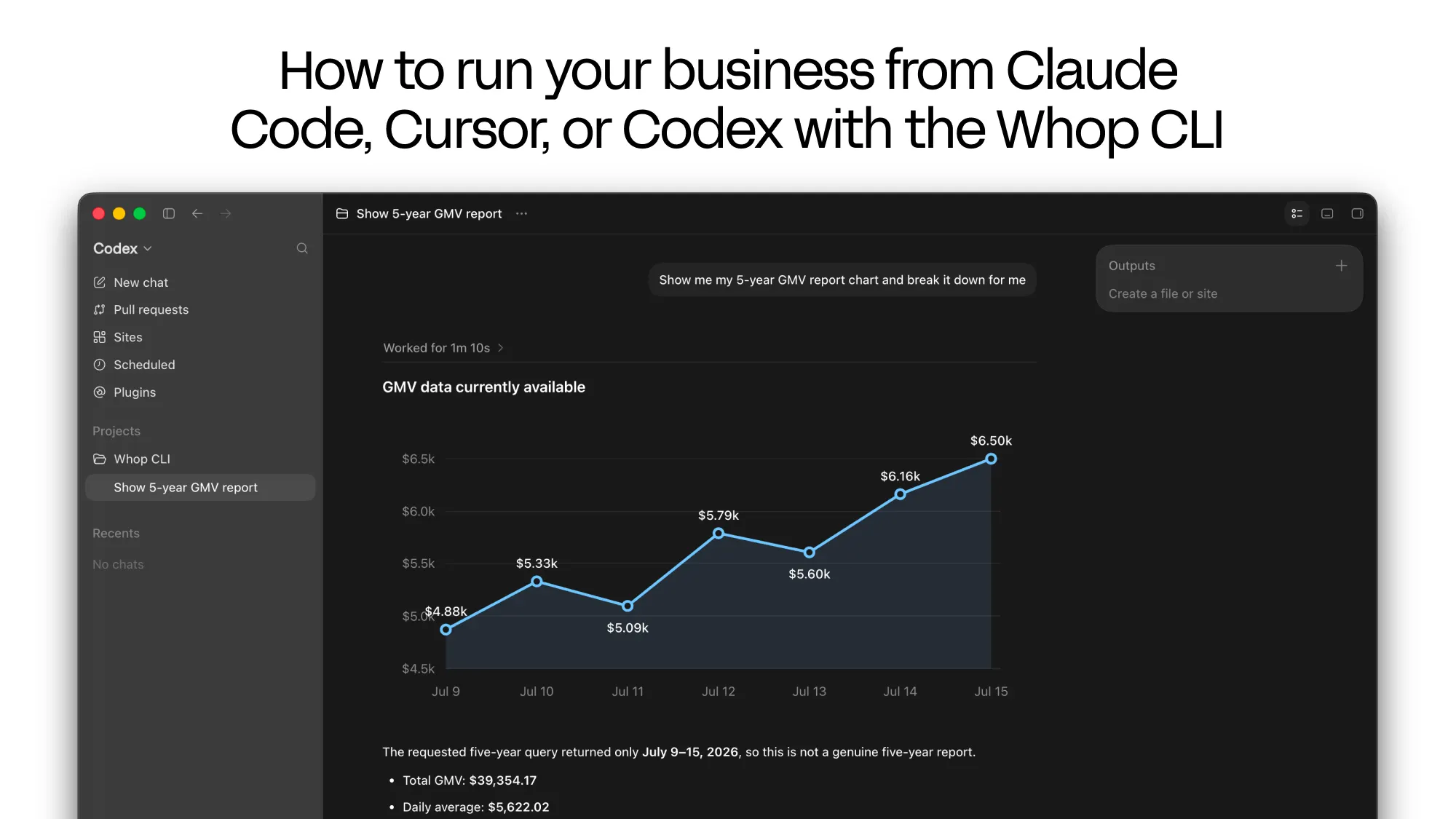
You can run your business from any agent by installing the Whop CLI, adding its skills, and prompting it to perform actions you would otherwise do manually on your dashboard.
Key takeaways
- Install the agent-neutral Whop CLI once and any agent can operate your entire business programmatically.
- Agents chain CLI commands into real workflows: Monday briefings, monthly closes, refund-spike alerts, and catalog cleanups.
- Plain-English prompts can launch ad variant tests, adjust team roles, and deploy custom Whop apps live.
You can run your business from any agent like Claude Code, Cursor, or Codex by installing the Whop CLI and letting them interact with it.
The Whop CLI lets your agents do everything you can do on the live Whop.com dashboard programmatically. Since they can chain the CLI commands and iterate on the results, they can understand how your business is performing, where it falls short, and the areas you should focus on.
This means it can brief you on Mondays, close your books, catch problems early, run experiments, and keep your business clean.
In this tutorial, we'll cover installing the Whop CLI no matter which agent you're using, seven management workflows you can start using today, and a list of prompts to steal.
How to set up the Whop CLI
You can install the Whop CLI to your computer with one command (pick the one for your system), and it's agent-neutral. Once you download it, all agents can use it.
You can run the command yourself on a command line or ask an agent you use to do it for you:
curl -fsSL https://whop.com/install.sh | sh   # macOS or Linux
brew install whopio/tap/whop                  # Homebrew
npm install -g @whop/cli                      # Windows (Node.js 22+)
After installing the CLI, confirm it by running the command below, which will reply with the version that's installed on your computer:
whop --versionNow, it's time to log in. Using the whop login command will prompt you to select how you want to log in: either with a browser sign-in page, or with an API key.
Selecting the Log in with Whop option will open a browser for you to sign in with your Whop account, and after you sign in, you'll be prompted to select which business you want to run using the CLI.
However if you select the API key option, you'll be prompted to paste a company API key, which means the CLI will work for that company.
Tip: In Claude Code you don't need to open a terminal at all. Ask Claude to install the CLI and sign you in, or type!whop loginright in the prompt box; the!prefix runs whatever follows as a terminal command.
Get the Whop CLI skills
Whop CLI commands are easy to use and straightforward, but to help your agents chain CLI usage, you should add the Whop CLI skill.
You can do this by asking your agent to add it for you or running the command below. One sync covers all of them, since the skill lands in a shared folder that Claude Code, Cursor, and Codex all read:
whop skills addSeven management workflows
Now, let's look at seven management workflows you can use to get real results.
You'll see the prompts to give to your agent and the CLI commands your agent will run under each. You never type them yourself, your agent runs them on your behalf, and they're there so you can see exactly what's happening to your business.
Start your week with a briefing
Every Monday, you can ask your agent to:
Use the Whop CLI and compare this week to last week: revenue, new members, churn, and ad spend. Tell me what changed, and whether any of my ads are stuck.
Your agent queries each metric over both windows, then reads every ad's delivery status to find the ones that aren't running:
whop stats get net_revenue --from 2026-07-17 --to 2026-07-24 --interval day
whop stats get new_users --from 2026-07-17 --to 2026-07-24
whop stats get churn_rate --from 2026-07-17 --to 2026-07-24
whop stats get ad_spend --from 2026-07-17 --to 2026-07-24
whop ads list --first 100
whop ad-campaigns list --first 100
After your agent runs the commands, it's going to give you a simple briefing like:
Revenue $2,140, up 18% on the week before. 34 new members, churn steady at 2.1%. Ad spend $180 with one problem: your "Summer launch" ad has been stuck in review since Thursday. Worth a look. Everything else is healthy.
whop stats list provides dozens of metrics, so your briefing can be about anything you want: trial conversions, disputes, refunds, ad performance, and more.
Once you settle on a format you like, ask your agent to remember it, and from then on "give me my Monday briefing" is enough on its own.
Close the month with a single prompt
Closing the month manually by gathering all the data from the dashboard and creating a report can be tedious. Your agent can do this in minutes with the Whop CLI:
Check the Whop CLI and close out July for me. Pull my income statement, break down the fees I paid, and list the payouts. Put it all in a PDF I can share with the team.
Your agent gathers each piece from the CLI, then does the part no CLI can: it writes the report and renders the PDF, or whatever format you asked for. The commands it uses look like:
whop ledgers report --report_type income_statement --from_date 2026-07-01T00:00:00Z --to_date 2026-07-31T23:59:59Z
whop stats get fees --from 2026-07-01 --to 2026-07-31 --breakdown_by fee_type
whop payouts list
One thing worth knowing: your agent can read ledgers and payouts on the browser login. It's moving money between accounts and swapping currencies that need an API key login.
You'll need to create that key in your Whop dashboard, under Developer and then API keys. A browser login can't mint one for you, so the first key always comes from the dashboard.
Once you have it, whop login --method api-key switches to it, and from then on your agent can manage and rotate your keys for you.
Catch problems early
Problems like refunds and dispute spikes are things you should always be aware of when running your business. When you ask your agent:
Using the Whop CLI check my dispute and refund rates over the last few weeks. If either one is climbing, find what's driving it and pause that with my OK.
It pulls each rate week by week, so a real spike stands out from ordinary noise.
If the spike traces back to an ad group sending low-quality traffic, it finds the offender and pauses it with your permission, which stops every ad in that group:
whop stats get dispute_rate --from 2026-07-01 --to 2026-07-24 --interval week
whop ad-groups list --first 100
whop ad-groups pause adgrp_XXXXXXXX
Find the right ads for you
Whop CLI can create ads and keep up with their statistics, but the interesting part comes in when you prompt your agent to chain different commands together.
When you give this prompt to your agent:
Make five image variants for my running club ad, launch them as drafts, and tell me daily which one is winning.
Your agent will generate five images, build the campaign and the ad group as a draft so nothing spends yet, then adds all five ads to that draft.
Nothing will go live until you approve it and it takes a single command to make the campaign active. From then on, it reads each ad's numbers daily, pauses the ones that lose, and duplicated the winner's ad group to scale it. It will use these CLI commands:
whop media generate --type image --prompt "A running club at sunrise" --wait
whop ads create --title "Variant A" --headlines "Find your stride" \
  --call_to_action sign_up --url "https://whop.com/your-store" \
  --creatives '[{"id":"file_XXXXXXXX"}]' --social_accounts '[{"id":"sacc_XXXXXXXX"}]' \
  --ad_group '{"title":"US broad","conversion_location":"website","ad_campaign":{"title":"Run club growth","platform":"meta","objective":"sales","status":"draft","budget_amount":25,"budget_optimization":"ad_campaign"}}'
# variants B-E reuse the draft group: --ad_group_id adgrp_XXXXXXXX
whop ad-campaigns update adcamp_XXXXXXXX --status active
whop ads list --order cost_per_result --direction desc --stats_from 2026-07-20 --first 100
whop ads pause ad_XXXXXXXX
whop ad-groups duplicate adgrp_XXXXXXXX --count 2 --preserve_engagement
There are two things here that draw on your company's Whop balance.
Each generated image is billed to that balance and ad spend itself comes out of it once you bill ads to your platform balance.
You can start a top-up with whop deposits create --destination biz_XXXXXXXX --amount 50 and finish it on the hosted page it returns.
Keep your store clean
As you get customers, create new products, and expand your portfolio, your store might get cluttered.
Going through every single detail, and wondering if you've missed anything takes time and effort. Instead, you can ask your agent to:
Go through every product and plan I have on Whop. Fix anything obviously wrong like missing headlines or bad visibility settings, then tell me which products haven't sold in three months so I can retire them.
Your agent walks the whole catalog, fixes what's unambiguous on its own, and brings back a retirement list backed by each product's actual sales:
whop products list
whop stats get successful_payments --from 2026-04-25 --to 2026-07-24 --breakdown_by product
whop products update prod_XXXXXXXX --headline "Daily trading signals, delivered at 9am"
whop products update prod_XXXXXXXX --visibility archived
Manage your team
Other than managing the commerce side of your business, the Whop CLI commands let your agents do all kinds of things like managing your team. When you ask your agent:
Promote the user Soke to a moderator.
Your agent will look at your team, find the member you want to promote, get their team member ID, and update their role (bringing in someone new works the same way, with whop users get to find the person and whop team-members create to add them):
whop team-members list
whop team-members update ausr_XXXXXXXX --role moderator
You can assign team members to these roles:
owneradminsales_managermoderatoradvertiserworkforce
Deploy custom apps to your business
One of the strongest use cases of the Whop CLI is making your agent build you a custom app and ship it as a real Whop app. When you ask your agent either one of these:
Build me a members-only trade journal app and deploy it live on my whop.
Add a daily check-in tool with a streak leaderboard, and ship it to my community.
Your agent scaffolds the project with whop apps init, writes the actual app code, and ships it with whop apps deploy, which builds, typechecks, uploads, and promotes to production in a single step.
The app goes live at its own *.whop.app address, and the runtime logs are one command away when something misbehaves:
whop apps init --name "Trade Journal"
whop apps deploy
whop apps logs app_XXXXXXXX --level error --created_after 2026-08-20T09:00:00Z
After you deploy the app, you should put it in front of your members by opening your whop and adding the app your agent made to it.
More things to ask your agent
As you can see, there are countless ways you can improve your business management workflows with the Whop CLI and an agent. Here are some ideas you can try out:
- "Test whether Lifetime Access sells better at $30." (duplicate hidden plan, split traffic, compare, kill the loser)
- "Run a 30%-off week, and end it automatically on Sunday night."
- "What's my best seller? Make an annual version priced at ten months."
- "Where's my non-USD revenue? Add local pricing for Europe."
- "Set affiliate commissions higher on my high-margin products."
- "Find my best ad group and clone it into a second campaign." (
whop ad-groups duplicate, which can keep the original post's likes and comments) - "Tell me whenever someone pays me more than $100." (
whop webhooks create, thenwhop webhooks test, on an API key login) - "Show me what my API key is allowed to do." (
whop api-keys permissions, thenwhop permissions check) - "Pay out $2,000 the cheapest way." (
whop payouts methods --amount 2000quotes fees and arrival dates per destination) - "Are my ads actually converting, or just getting clicks?" (page visits versus successful payments, per product)
- "Write me a nightly revenue digest and schedule it." (headless mode:
WHOP_API_KEYplus--format json, no login needed) - "Turn this quarter into a one-page investor update: revenue chart, top products, a short narrative, as a PDF." (the CLI supplies the numbers, the agent builds the document)
Keep exploring the Whop CLI
Whop CLI can do everything from creating a business from scratch to building and deploying custom apps to your existing businesses. This way, the manual effort needed to run a business can be minimized.
If you want to learn more about the Whop CLI and how you can use it, check out our Whop developer docs.